> ## Documentation Index
> Fetch the complete documentation index at: https://docs.peerdb.io/llms.txt
> Use this file to discover all available pages before exploring further.
# AWS Private Link
PeerDB Cloud supports AWS Private Link for secure and private connectivity between VPCs.
This allows you to connect your VPCs to PeerDB Cloud without exposing your data to the public internet.
## Setting up AWS Private Link with PeerDB Cloud
1. Create the necessary endpoint service as per preference. Some of the common ways to achieve this are (for Postgres):
* EC2 with script to fetch DNS records on schedule and update forwarding rules
* Lambda with listener to Event Bridge (CloudFormation Template available in [AWS Docs](https://aws.amazon.com/blogs/database/access-amazon-rds-across-vpcs-using-aws-privatelink-and-network-load-balancer/)
Make sure the RDS instance endpoint used in case of RDS DB Cluster/Aurora is ONLY the WRITER Endpoint and NOT the common endpoint.
2. Give access to the PeerDB's AWS ARN `arn:aws:iam::141675317444:root` (or Account ID `141675317444`) so that it can be discovered for establishing the Private Link connection
3. (Optionally) Allow network connections from PeerDB's internal CIDR range `10.0.0.0/16` to the Endpoint Service
4. Provide PeerDB Team with Endpoint Service Name (`com.amazonaws…`) and the region where the service is located
* This can be done either via contacting PeerDB Team via Slack or Email
1. PeerDB Team will setup the necessary Endpoint Interface
2. PeerDB Team will provide back the DNS name (for peer connectivity) and the Endpoint Interface ID for Accepting the Endpoint Interface request
1. Accept the Endpoint Interface Request
2. Create the peer via PeerDB UI (or ask PeerDB Team to perform a health check on the Endpoint Interface DNS from the same network as the PeerDB Cloud Instance)
## Setting up a ClickHouse Cloud Private Link with PeerDB Cloud
PeerDB cloud *natively* supports AWS Private Link for destination ClickHouse Cloud instances. This allows you to connect your ClickHouse Cloud instance to PeerDB Cloud without exposing your data to the public internet.
1. Go to your ClickHouse Cloud instance console
2. Navigate to "Settings"
3. Click on "Set up private endpoint" under "Settings" -> "Private endpoints"
4. You should see a screen like below:
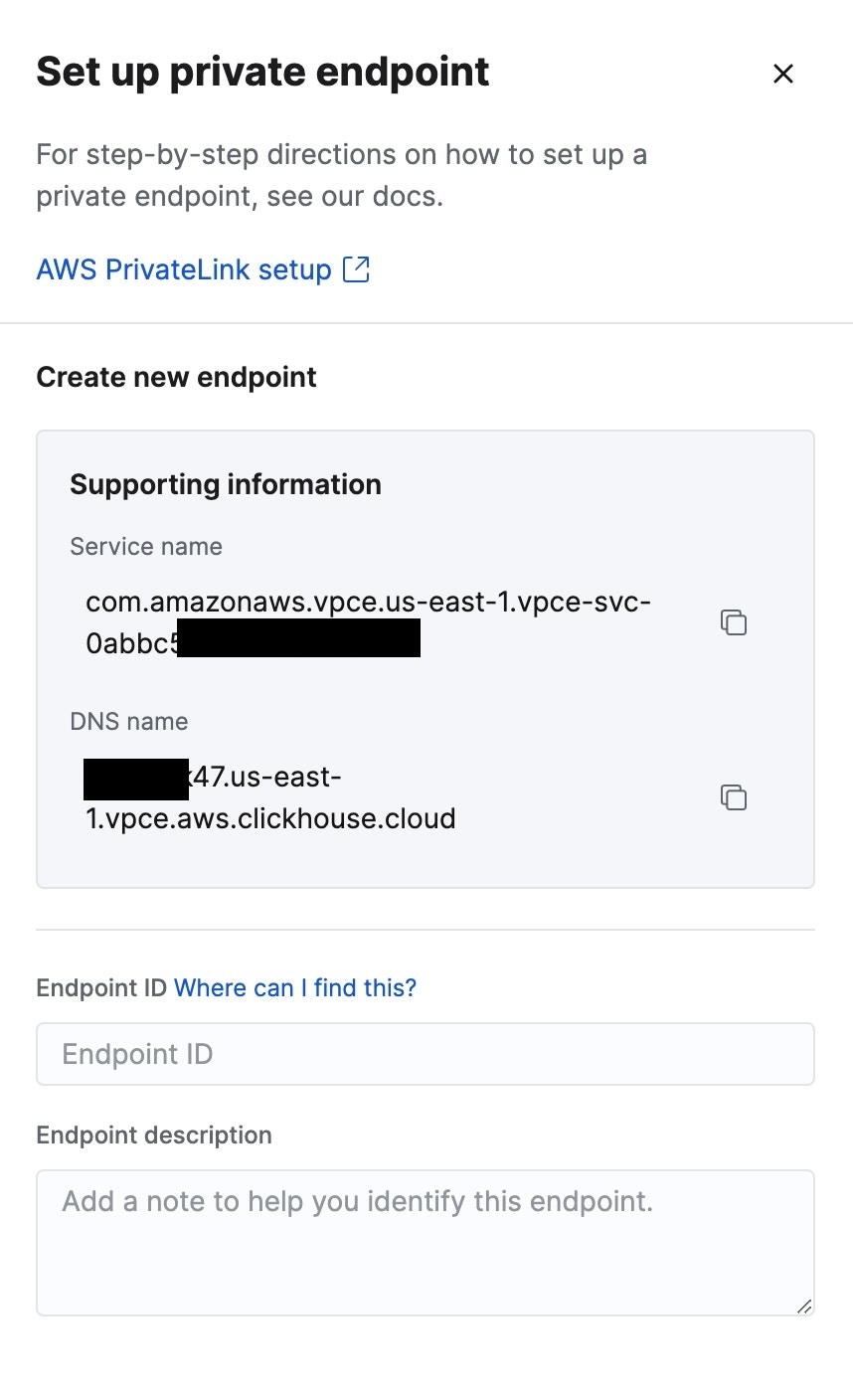 5. Copy the "Service Name" and "DNS Name" from the above dialog and provide it to the PeerDB Team, (along with a helpful description of the cloud instance for reference)
1. PeerDB Team will setup the necessary Endpoint Interface
2. PeerDB Team will provide back the the `Endpoint ID`
1. Go back to the ClickHouse Cloud Console and head over to the same "Set up private endpoint" screen
2. Enter the `Endpoint ID` provided by the PeerDB Team in the "Endpoint ID" field and Description can be "PeerDB Cloud Link"
5. Copy the "Service Name" and "DNS Name" from the above dialog and provide it to the PeerDB Team, (along with a helpful description of the cloud instance for reference)
1. PeerDB Team will setup the necessary Endpoint Interface
2. PeerDB Team will provide back the the `Endpoint ID`
1. Go back to the ClickHouse Cloud Console and head over to the same "Set up private endpoint" screen
2. Enter the `Endpoint ID` provided by the PeerDB Team in the "Endpoint ID" field and Description can be "PeerDB Cloud Link"
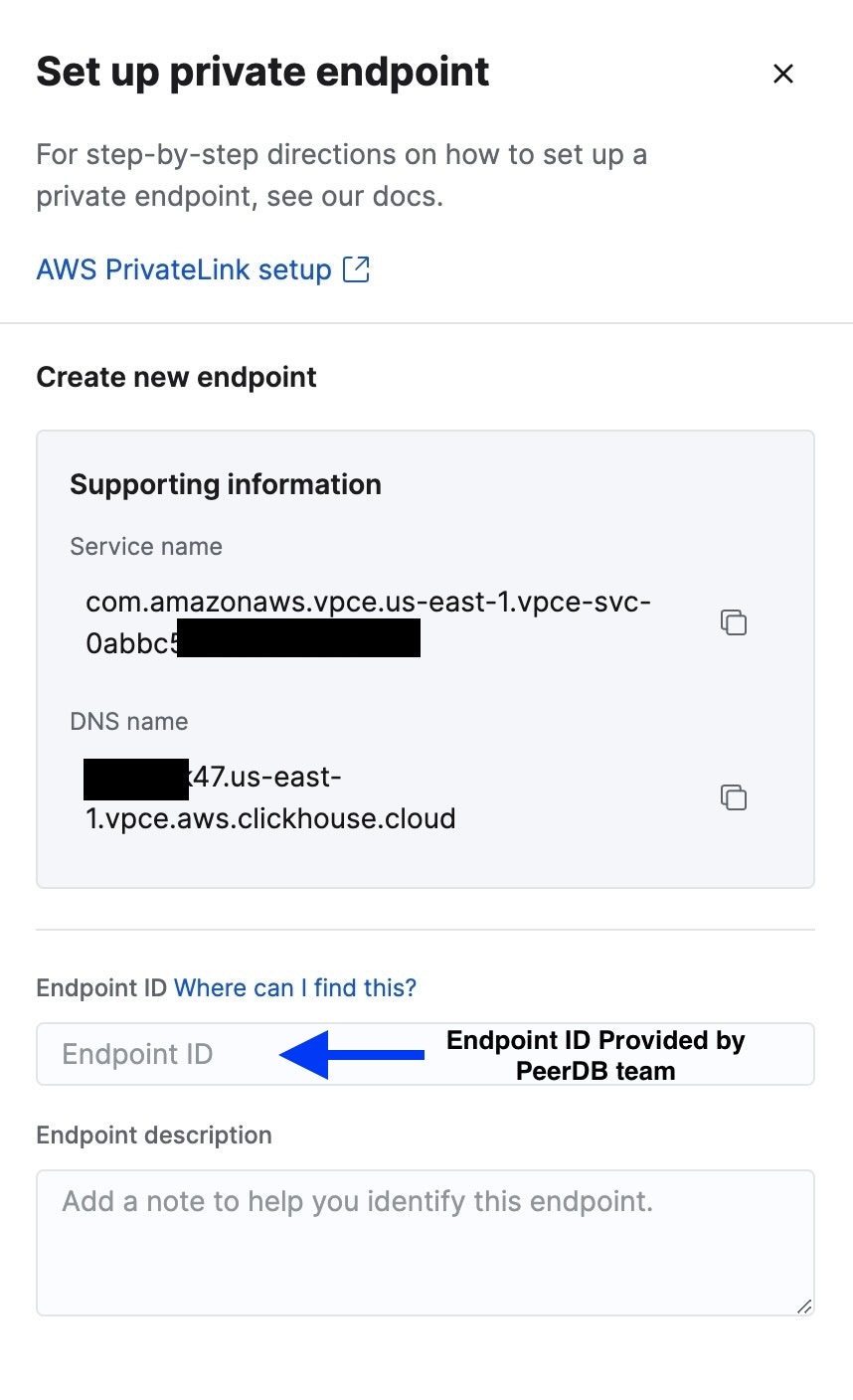 1. You can now use the DNS name provided earlier under the "Setup Endpoint Service on ClickHouse Cloud Console" step to create a peer in PeerDB Cloud.
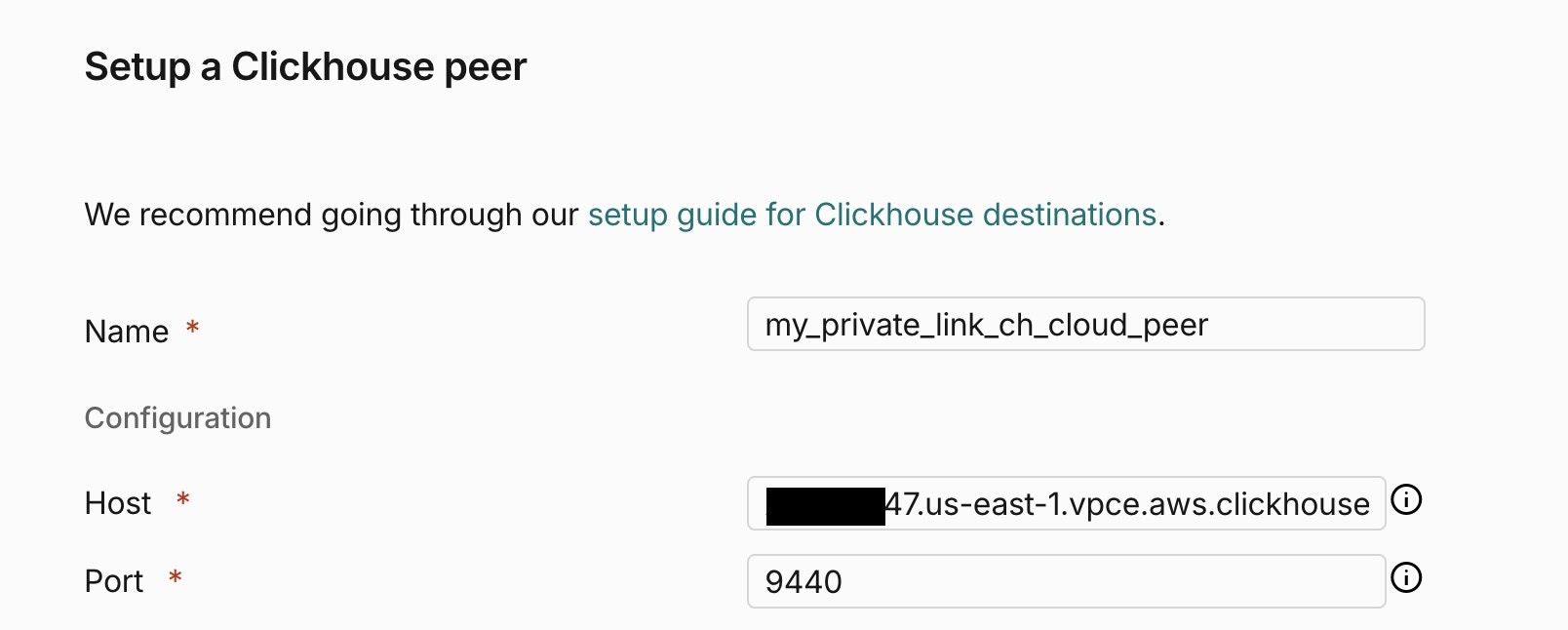 2. For further details on how to create a ClickHouse Cloud peer, refer to the [ClickHouse Cloud Setup Guide](/connect/clickhouse/clickhouse-cloud#clickhouse-cloud-setup-guide)