> ## Documentation Index
> Fetch the complete documentation index at: https://docs.peerdb.io/llms.txt
> Use this file to discover all available pages before exploring further.
# Resyncing a CDC Mirror
PeerDB allows you to resync a Change-Data Capture mirror. Resync is currently supported for the following target connectors:
1. Clickhouse
2. PostgreSQL
3. Snowflake
4. BigQuery
### What does Resync do?
Resync involves the following operations in order:
1. The existing mirror is dropped, and a new "resync" mirror is kicked off. Thus, changes to source table structures will be picked up by PeerDB when you resync.
2. The resync mirror creates (or replaces) a new set of destination tables which have the same names as the original tables except with a `_resync` suffix.
3. Initial load is performed on the `_resync` tables.
4. The `_resync` tables are then swapped with the original tables. Soft deleted rows are transferred from the original tables to the `_resync` tables before the swap.
All the settings of the original mirror are retained in the resync mirror. The statistics of the original mirror are cleared in the UI.
### Use cases for resyncing a mirror
Here are a few scenarios:
1. You may need to perform major schema changes on the source tables which would break the existing mirror and you would need to restart. You can just click Resync after performing the changes.
2. Specifically for Clickhouse, maybe you needed to change the ORDER BY keys on the target tables. You can Resync to re-populate data into the new table with the right sorting key.
3. The replication slot of the mirror is invalidated: Resync creates a new mirror and a new slot on the source database.
You can resync multiple times, however please account for the load on the source database when you resync,
since initial load with parallel threads is involved each time.
### Resync Mirror Guide
In PeerDB UI, click on the mirror which you wish to resync.
In the top-right corner, click on the **Actions** dropdown and select **Resync**.
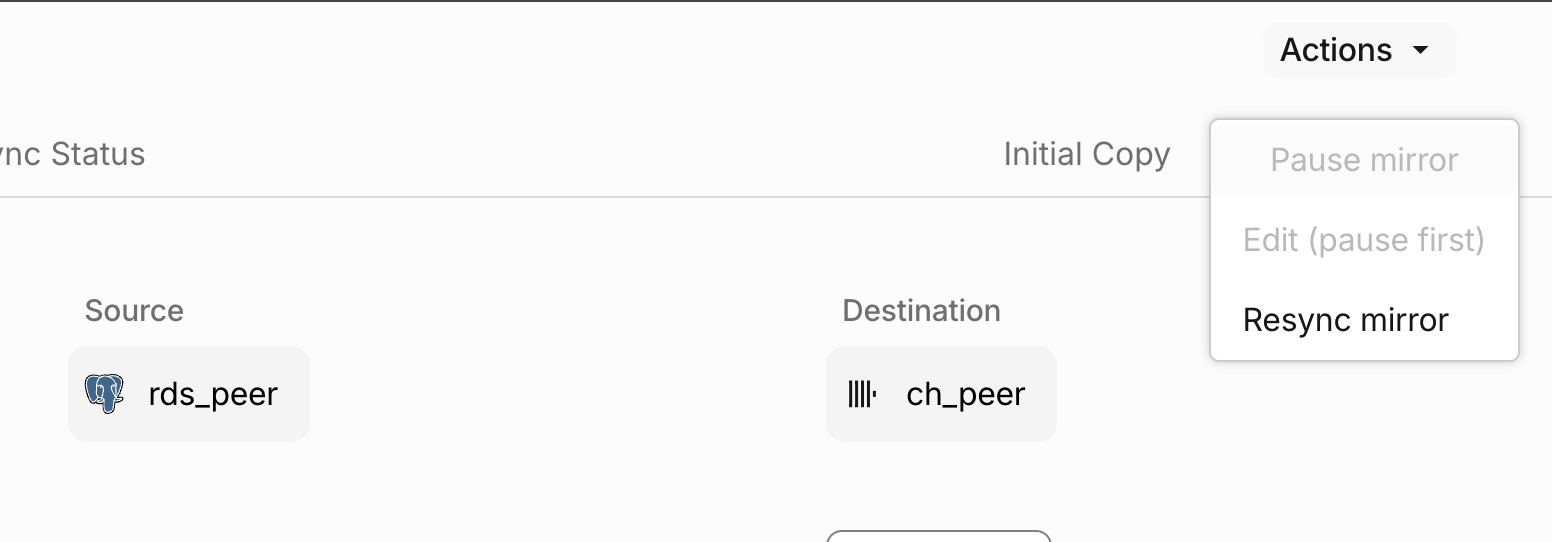 You will see a confirmation dialog.
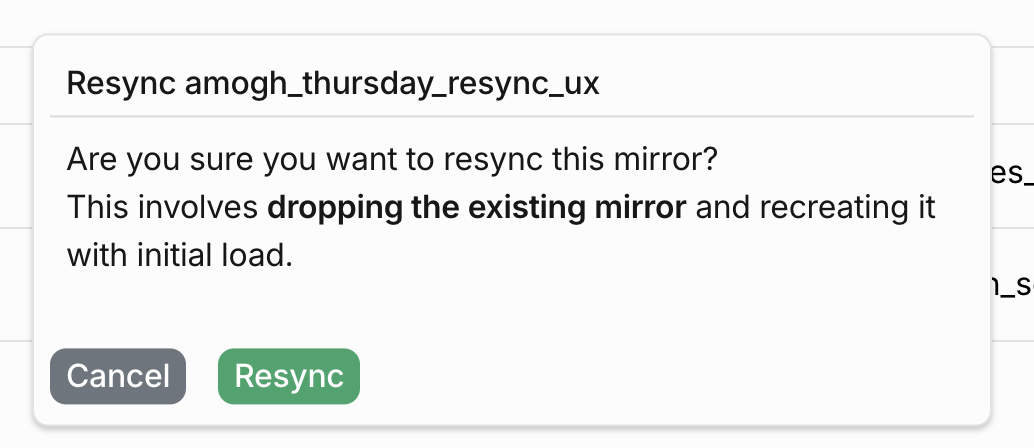 Click on **Resync** to proceed.
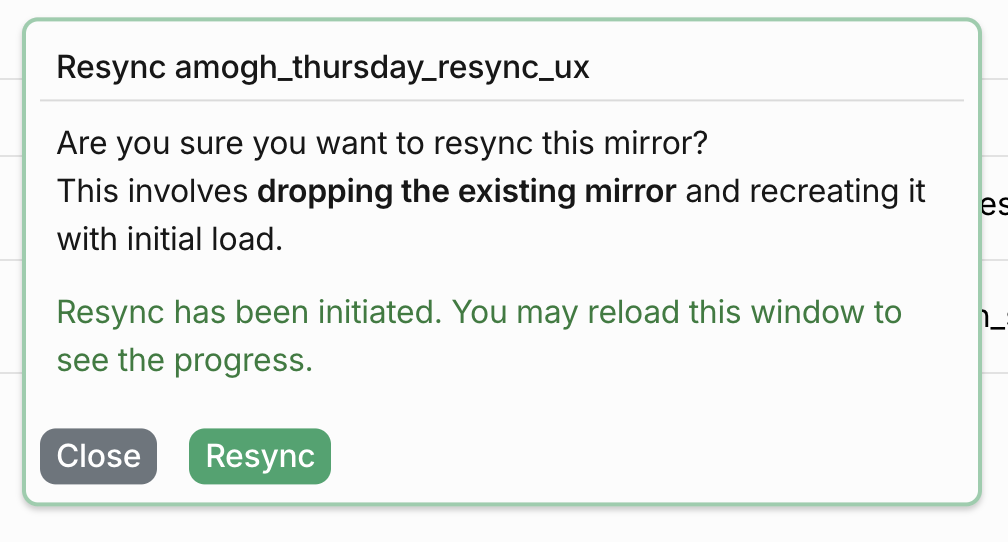 The resync operation will be kicked off. You can monitor the progress in the Mirror Details page.
In the **Overview** tab, you will see the **Status** of the mirror.
* If the status is **Setup**, the `_resync` tables are being created.
* If the status is **Snapshot**, the initial load is being performed to the `_resync` tables.
* If the status is dRunning\*\*, the `_resync` tables have been swapped and the resync is complete.
The mirror is now in **CDC**.
The resync operation will be kicked off. You can monitor the progress in the Mirror Details page.
In the **Overview** tab, you will see the **Status** of the mirror.
* If the status is **Setup**, the `_resync` tables are being created.
* If the status is **Snapshot**, the initial load is being performed to the `_resync` tables.
* If the status is dRunning\*\*, the `_resync` tables have been swapped and the resync is complete.
The mirror is now in **CDC**.