> ## Documentation Index
> Fetch the complete documentation index at: https://docs.peerdb.io/llms.txt
> Use this file to discover all available pages before exploring further.
# Slack Alerting
export const AlertSender_0 = "Slack"
PeerDB can be configured to automatically send alerts via {AlertSender_0} for issues such as Slot Lag Growth and Open Connections.
# Configuring Slack
## Creating and Installing a Slack App (One-Time)
This step is not required if you already have an Auth token that starts with `xoxb-`
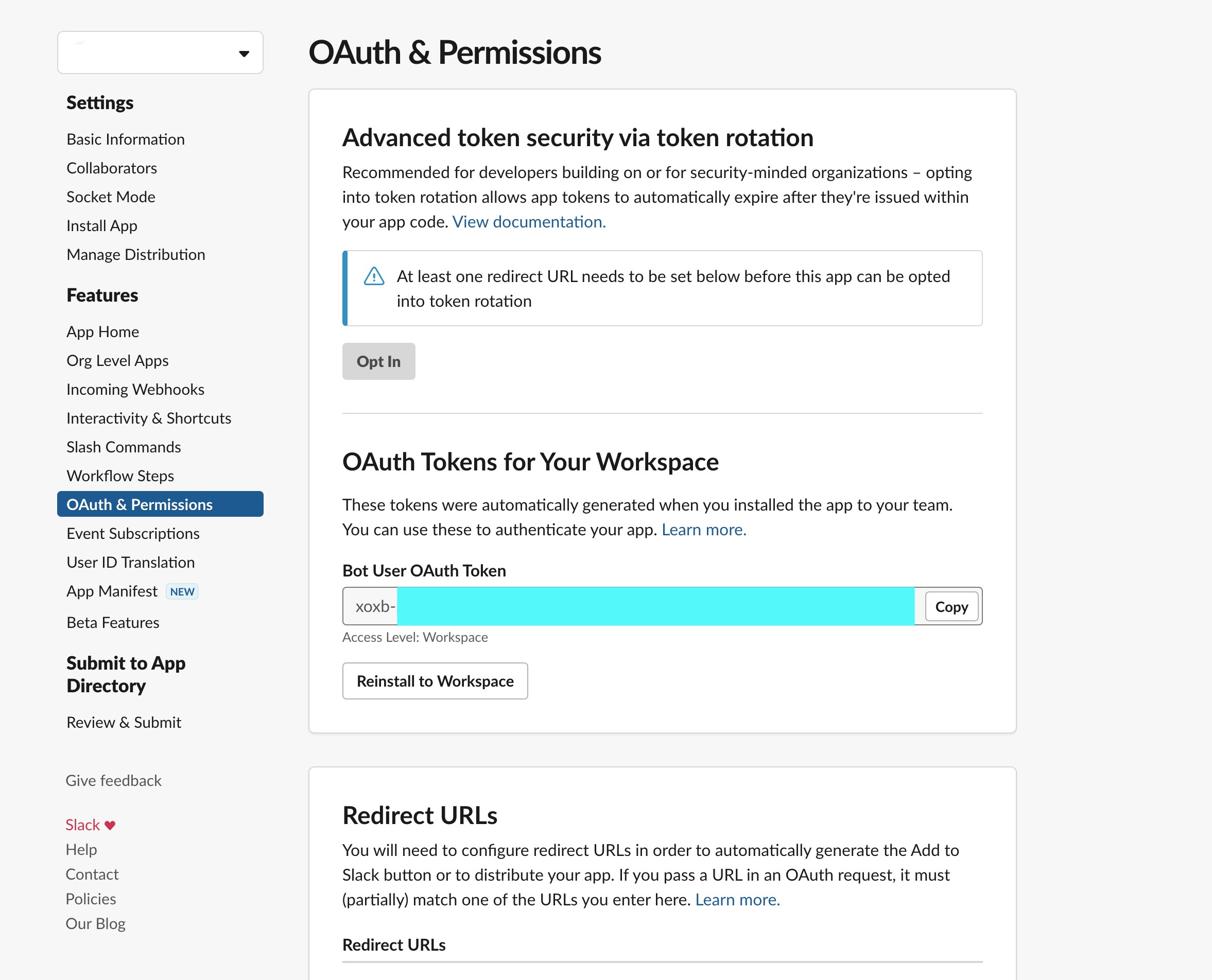
Follow the [Slack Apps Quickstart](https://api.slack.com/start/quickstart) (upto Step 3) to create and install a Slack App on your Workspace with `chat:write` permissions.
You can find the Auth token starting with `xoxb-` under
 ## Inviting the app to the required channels
In order to make sure that the newly created app can post in the required channels, go ahead and invite it to those channels by sending this message:
```
/invite @
```
## Getting the channel IDs
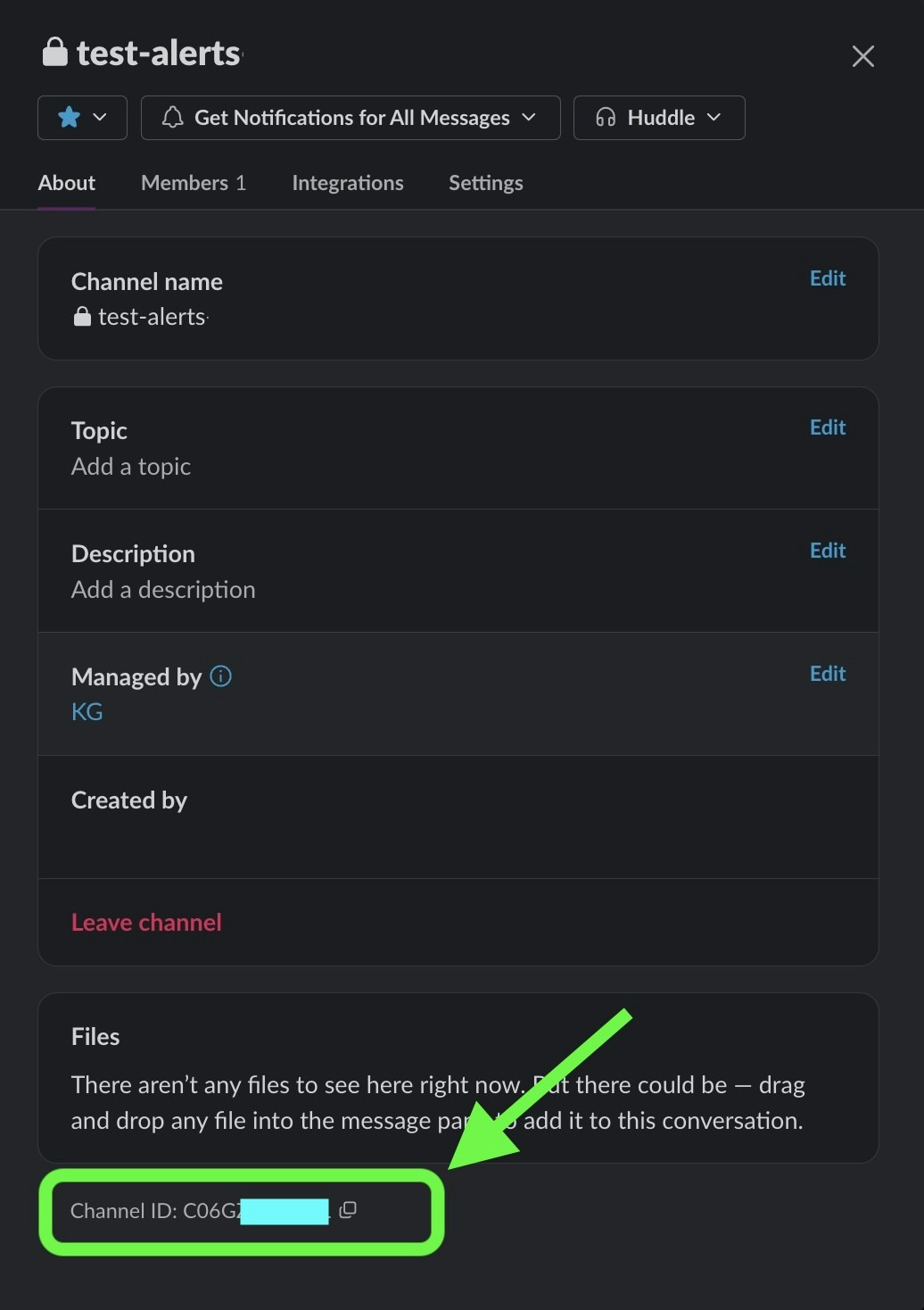
Click the Channel Name if you have the channel open or right-click the channel and click "View channel details" from the
side bar to get the channel view.
Now the Channel ID can be copied at the bottom of the channel info dialog:
## Inviting the app to the required channels
In order to make sure that the newly created app can post in the required channels, go ahead and invite it to those channels by sending this message:
```
/invite @
```
## Getting the channel IDs
Click the Channel Name if you have the channel open or right-click the channel and click "View channel details" from the
side bar to get the channel view.
Now the Channel ID can be copied at the bottom of the channel info dialog:
 # Configuring PeerDB UI
## Adding a configuration
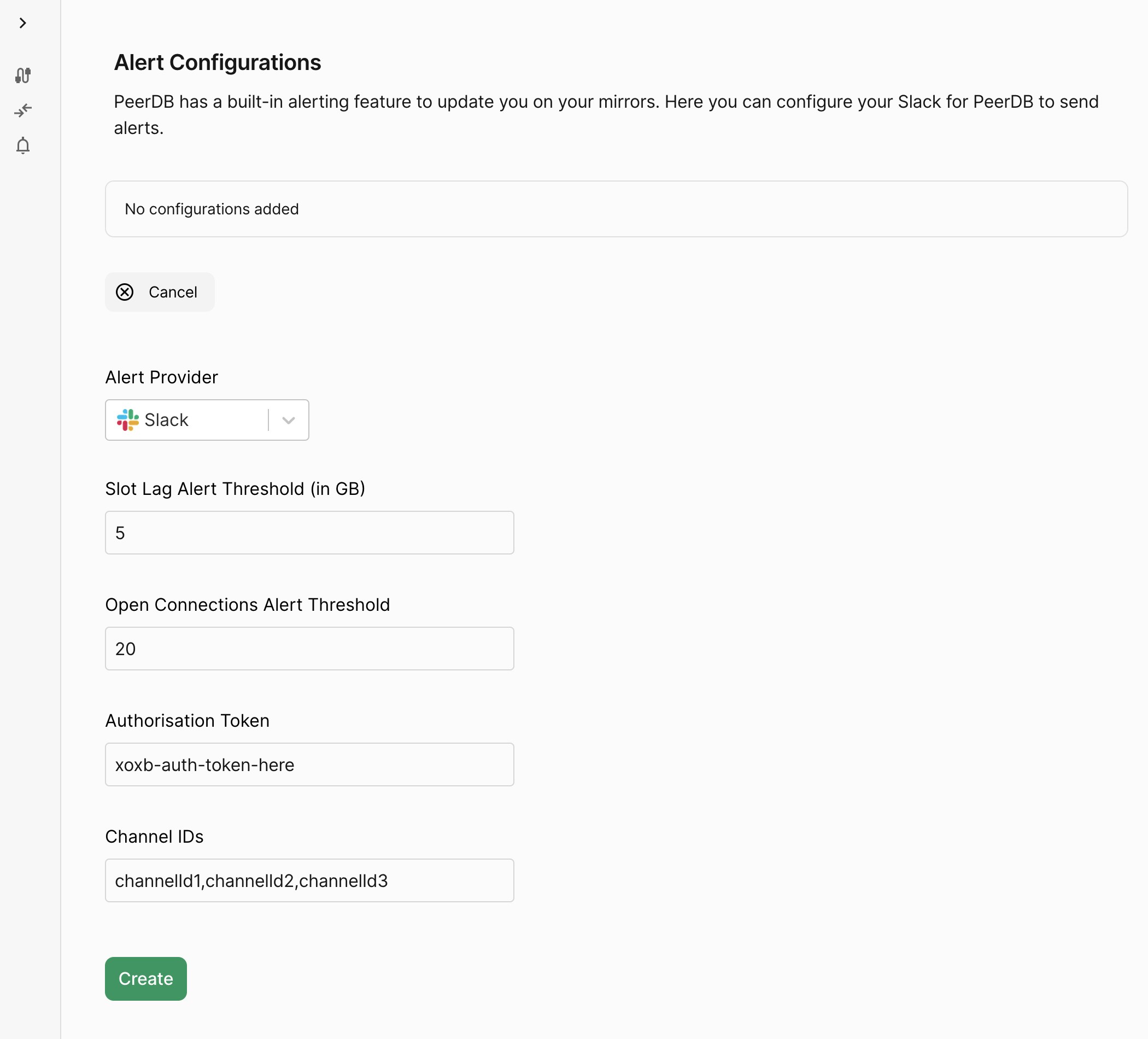
1. Click on "Alert Configuration" from the left side of the PeerDB UI and then click "Add Configuration".
2. Now select "Slack" from the list of alert providers and paste the Auth Token and Channel ID from before.
To add multiple channel IDs for a given configuration, add them comma-separated
3. Click on "Create"
# Configuring PeerDB UI
## Adding a configuration
1. Click on "Alert Configuration" from the left side of the PeerDB UI and then click "Add Configuration".
2. Now select "Slack" from the list of alert providers and paste the Auth Token and Channel ID from before.
To add multiple channel IDs for a given configuration, add them comma-separated
3. Click on "Create"