> ## Documentation Index
> Fetch the complete documentation index at: https://docs.peerdb.io/llms.txt
> Use this file to discover all available pages before exploring further.
# Generic PostgreSQL Source Setup Guide
This is a guide on how to create a generic PostgreSQL peer which you can use for replication in PeerDB.
If you use one of the supported providers (in the sidebar), please refer to the specific guide for that provider.
1. To enable replication on your PostgreSQL instance, we need to make sure that the following settings are set:
```sql theme={null}
wal_level = logical
```
To check the same, you can run the following SQL command:
```sql theme={null}
SHOW wal_level;
```
The output should be `logical`. If not, run:
```sql theme={null}
ALTER SYSTEM SET wal_level = logical;
```
2. Additionally, the following settings are recommended to be set on the PostgreSQL instance:
```sql theme={null}
max_wal_senders > 1
max_replication_slots >= 4
```
To check the same, you can run the following SQL commands:
```sql theme={null}
SHOW max_wal_senders;
SHOW max_replication_slots;
```
If the values do not match the recommended values, you can run the following SQL commands to set them:
```sql theme={null}
ALTER SYSTEM SET max_wal_senders = 10;
ALTER SYSTEM SET max_replication_slots = 10;
```
3. If you have made any changes to the configuration as mentioned above, you NEED to RESTART the PostgreSQL instance for the changes to take effect.
Let's create a new user for PeerDB with the necessary permissions suitable for CDC,
and also create a publication that we'll use for replication. For this, you can connect to your PostgreSQL instance and run the following SQL commands:
The PeerDB user must not be restricted by RLS policies, as it can lead to missing data. You can disable RLS policies for the user by running the below command:
```sql theme={null}
ALTER USER peerdb_user BYPASSRLS;
```
1. Create a dedicated user for PeerDB:
1. ```sql theme={null}
CREATE USER peerdb_user PASSWORD 'some-password';
```
2. Grant schema-level, read-only access to the user you created in the previous step. The following example shows permissions for the `public` schema. Repeat these commands for each schema containing tables you want to replicate:
1. ```sql theme={null}
GRANT USAGE ON SCHEMA "public" TO peerdb_user;
GRANT SELECT ON ALL TABLES IN SCHEMA "public" TO peerdb_user;
ALTER DEFAULT PRIVILEGES IN SCHEMA "public" GRANT SELECT ON TABLES TO peerdb_user;
```
3. Grant replication privileges to the user:
1. ```sql theme={null}
ALTER USER peerdb_user WITH REPLICATION;
```
4. Create a [publication](https://www.postgresql.org/docs/current/logical-replication-publication.html) with the tables you want to replicate. We strongly recommend only including the tables you need in the publication to avoid performance overhead.
Any table included in the publication must either have a **primary key** defined *or* have its **replica identity** configured to `FULL`.
1. To create a publication for specific tables:
```sql theme={null}
CREATE PUBLICATION peerdb_publication FOR TABLE table_to_replicate, table_to_replicate2;
```
2. To create a publication for all tables in a specific schema:
```sql theme={null}
CREATE PUBLICATION peerdb_publication FOR TABLES IN SCHEMA "public";
```
The `peerdb_publication` publication will contain the set of change events generated from the specified tables, and will later be used to create the MIRROR (replication).
If you are self serving, you need to allow connections to the PeerDB user from the PeerDB IP addresses by following the below steps. If you are using a managed service, you can do the same by following the provider's documentation.
1. Make necessary changes to the `pg_hba.conf` file to allow connections to the PeerDB user from the PeerDB IP addresses. An example entry in the `pg_hba.conf` file would look like:
```
host all peerdb_user 0.0.0.0/0 scram-sha-256
```
2. Reload the PostgreSQL instance for the changes to take effect:
```sql theme={null}
SELECT pg_reload_conf();
```
1. Head over to PeerDB UI and click on **Create Peer**. Select **Postgres** as the source.
2. Now you can fill in the connection details of the PostgreSQL instance, but make sure to use the username and password you created earlier in the SQL commands in Step 2.
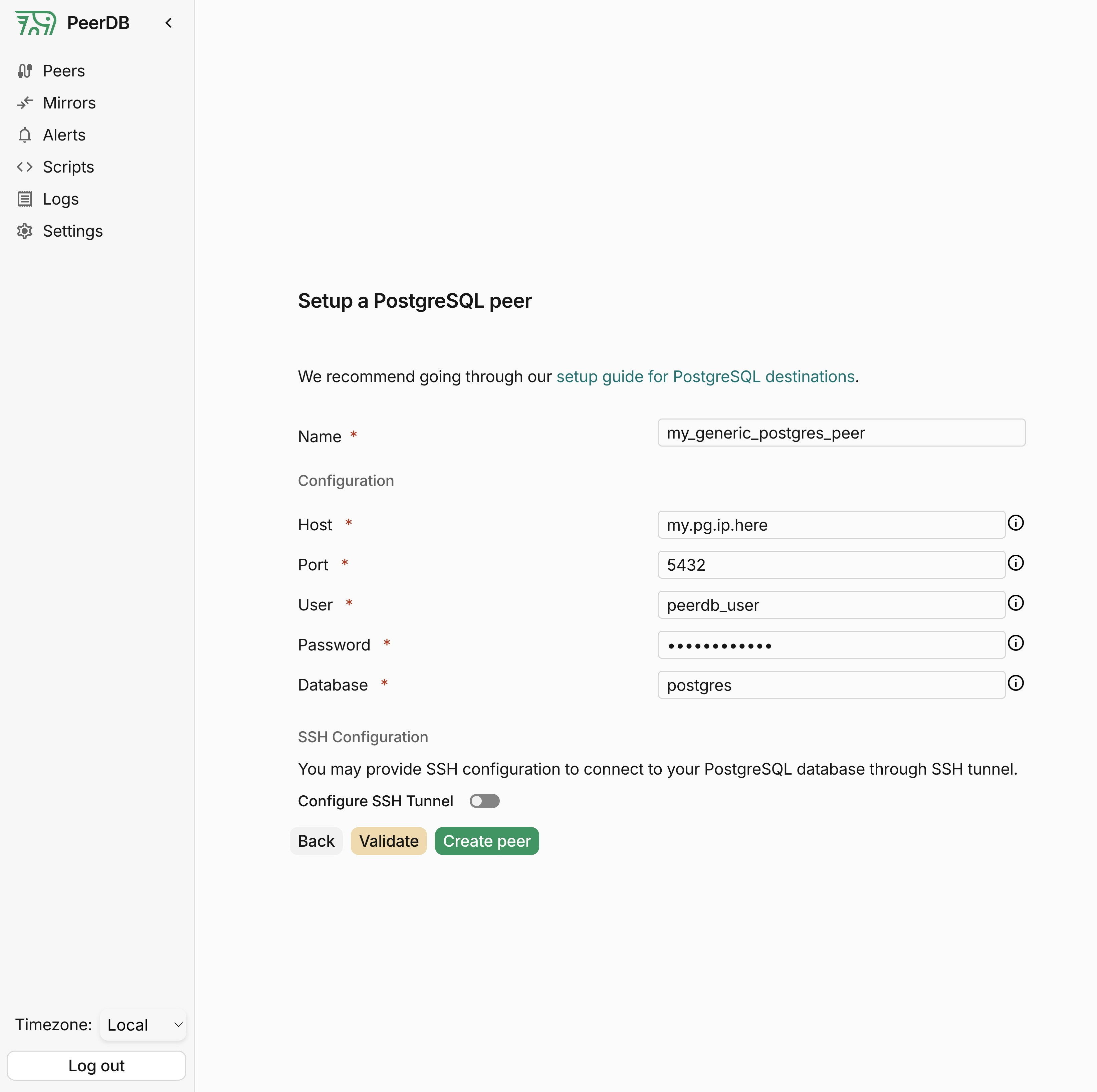 4. Click on **Validate** and once that's green, you can go ahead and click on **Create** to create the peer!
This is a recommended configuration change to ensure that large transactions/commits do not cause the replication slot to be dropped.
You can increase the `max_slot_wal_keep_size` parameter for your PostgreSQL instance to a higher value (at least 100GB or `102400`) by updating the `postgresql.conf` file.
```sql theme={null}
max_slot_wal_keep_size = 102400
```
You can reload the PostgreSQL instance for the changes to take effect:
```sql theme={null}
SELECT pg_reload_conf();
```
For better recommendation of this value you can contact the PeerDB team.
When creating the Mirror, make sure to reuse the same publication you created earlier in Step 2
4. Click on **Validate** and once that's green, you can go ahead and click on **Create** to create the peer!
This is a recommended configuration change to ensure that large transactions/commits do not cause the replication slot to be dropped.
You can increase the `max_slot_wal_keep_size` parameter for your PostgreSQL instance to a higher value (at least 100GB or `102400`) by updating the `postgresql.conf` file.
```sql theme={null}
max_slot_wal_keep_size = 102400
```
You can reload the PostgreSQL instance for the changes to take effect:
```sql theme={null}
SELECT pg_reload_conf();
```
For better recommendation of this value you can contact the PeerDB team.
When creating the Mirror, make sure to reuse the same publication you created earlier in Step 2