> ## Documentation Index
> Fetch the complete documentation index at: https://docs.peerdb.io/llms.txt
> Use this file to discover all available pages before exploring further.
# Crunchy Bridge Postgres Source Setup Guide
## Enable Logical Replication
Crunchy Bridge comes with logical replication enabled by [default](https://docs.crunchybridge.com/how-to/logical-replication). Ensure that the settings below are configured correctly. If not, adjust them accordingly.
```sql theme={null}
SHOW wal_level; -- should be logical
SHOW max_wal_senders; -- should be 10
SHOW max_replication_slots; -- should be 10
```
## Creating PeerDB User and Granting permissions
Connect to your Crunchy Bridge Postgres through the `postgres` user and run the below commands:
1. Create a dedicated user for PeerDB:
1. ```sql theme={null}
CREATE USER peerdb_user PASSWORD 'some-password';
```
2. Grant schema-level, read-only access to the user you created in the previous step. The following example shows permissions for the `public` schema. Repeat these commands for each schema containing tables you want to replicate:
1. ```sql theme={null}
GRANT USAGE ON SCHEMA "public" TO peerdb_user;
GRANT SELECT ON ALL TABLES IN SCHEMA "public" TO peerdb_user;
ALTER DEFAULT PRIVILEGES IN SCHEMA "public" GRANT SELECT ON TABLES TO peerdb_user;
```
3. Grant replication privileges to the user:
1. ```sql theme={null}
ALTER USER peerdb_user WITH REPLICATION;
```
4. Create a [publication](https://www.postgresql.org/docs/current/logical-replication-publication.html) with the tables you want to replicate. We strongly recommend only including the tables you need in the publication to avoid performance overhead.
Any table included in the publication must either have a **primary key** defined *or* have its **replica identity** configured to `FULL`.
1. To create a publication for specific tables:
```sql theme={null}
CREATE PUBLICATION peerdb_publication FOR TABLE table_to_replicate, table_to_replicate2;
```
2. To create a publication for all tables in a specific schema:
```sql theme={null}
CREATE PUBLICATION peerdb_publication FOR TABLES IN SCHEMA "public";
```
The `peerdb_publication` publication will contain the set of change events generated from the specified tables, and will later be used to create the MIRROR (replication).
The PeerDB user must not be restricted by RLS policies, as it can lead to missing data. You can disable RLS policies for the user by running the below command:
```sql theme={null}
ALTER USER peerdb_user BYPASSRLS;
```
## Safe list PeerDB Cloud IPs
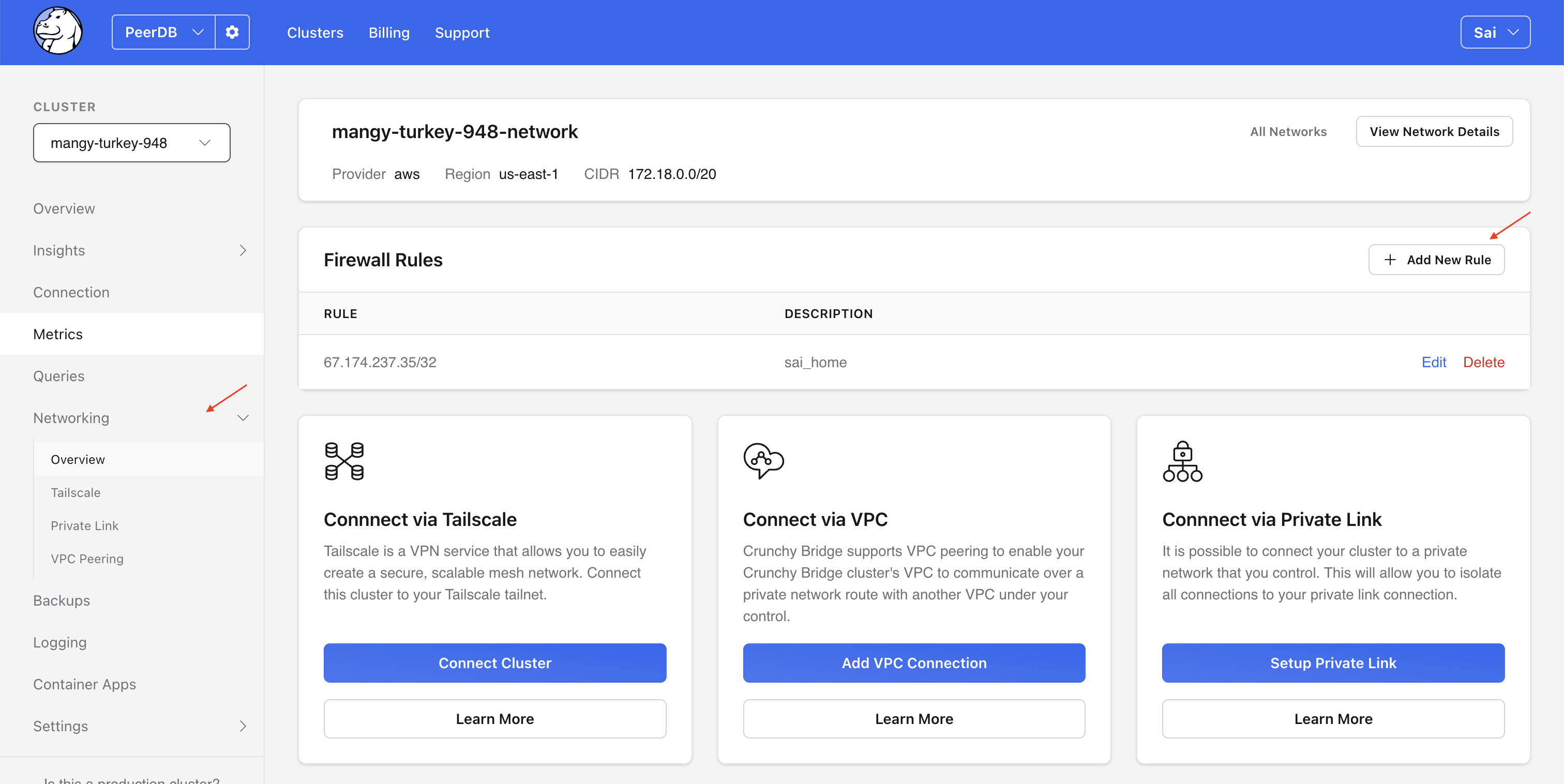
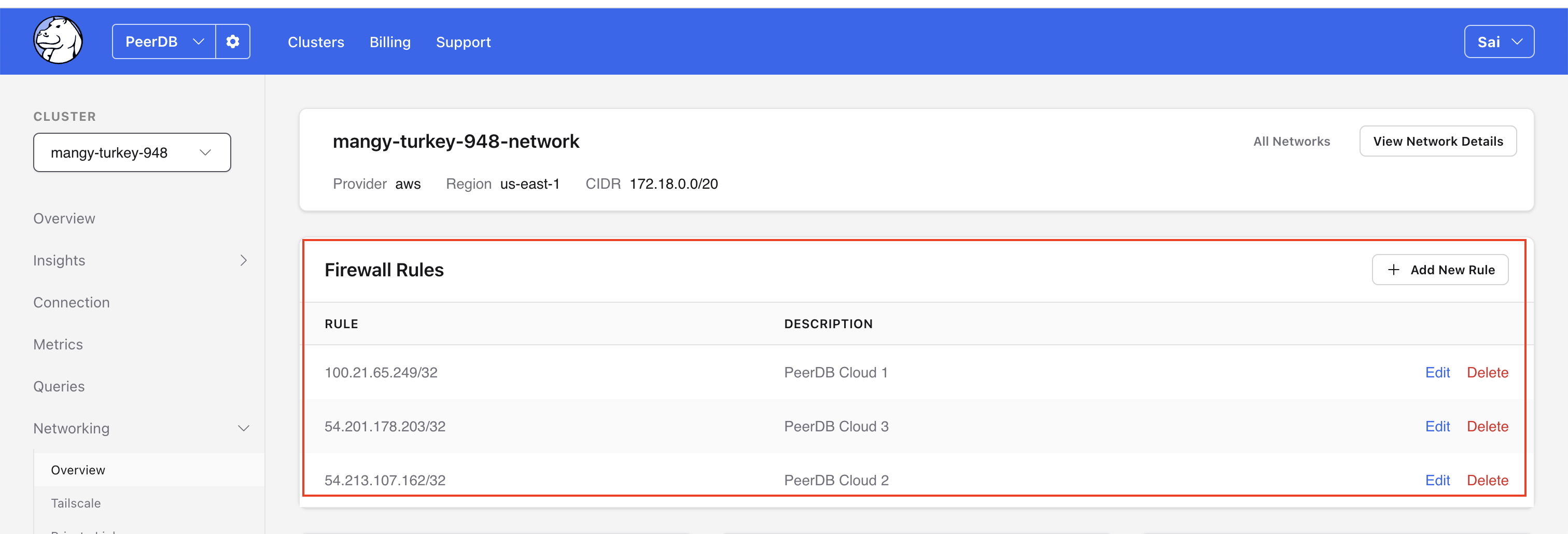
If you are using PeerDB Cloud [safelist the public IPs of your PeerDB Cloud instance](/peerdb-cloud/ip-table) by adding the Firewall Rules in Crunchy Bridge.
 ## Create Crunchy Bridge Peer in PeerDB
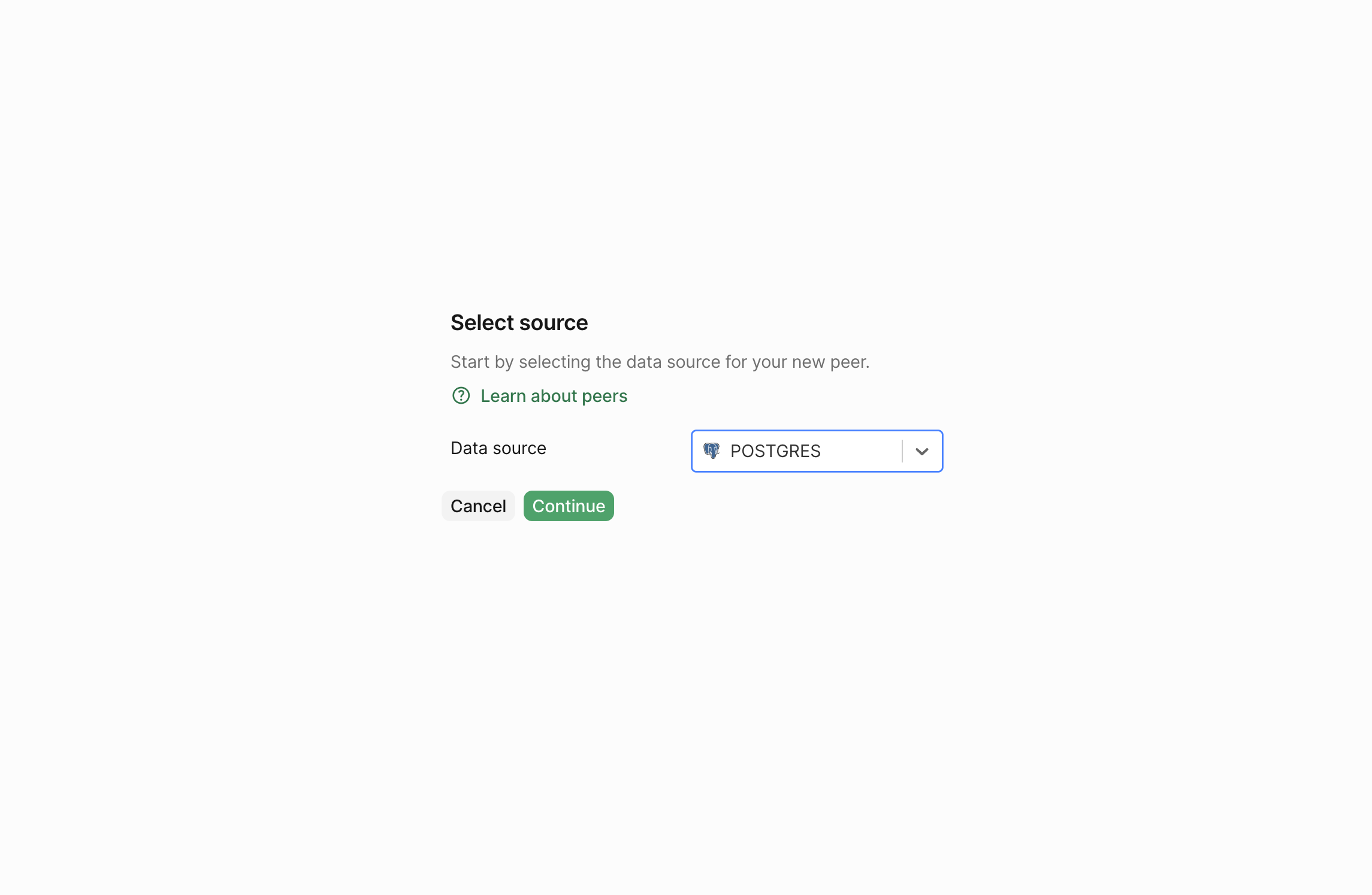
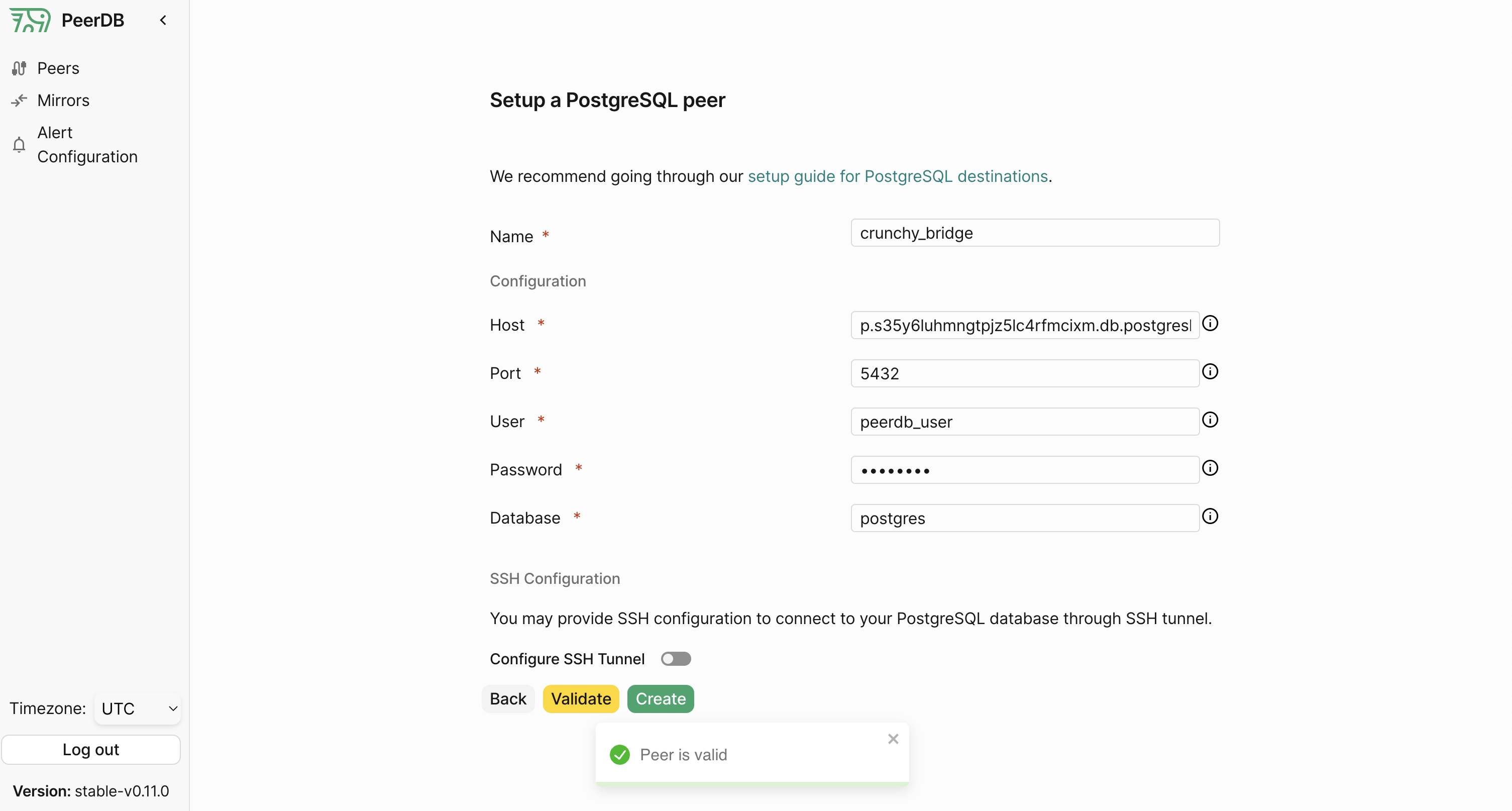
Through the PeerDB UI, create the Crunchy Bridge Postgres Peer using the `peerdb_user` that you created in the previous step.
## Create Crunchy Bridge Peer in PeerDB
Through the PeerDB UI, create the Crunchy Bridge Postgres Peer using the `peerdb_user` that you created in the previous step.