> ## Documentation Index
> Fetch the complete documentation index at: https://docs.peerdb.io/llms.txt
> Use this file to discover all available pages before exploring further.
# Google CloudSQL Postgres Source Setup Guide
## Supported Postgres versions
Anything on or after Postgres 12
## Enable Logical Replication
**You don't need** to follow the below steps if the settings `cloudsql. logical_decoding` is on and `wal_sender_timeout` is 0. These settings should mostly be pre-configured if you are migrating from another data replication tool.
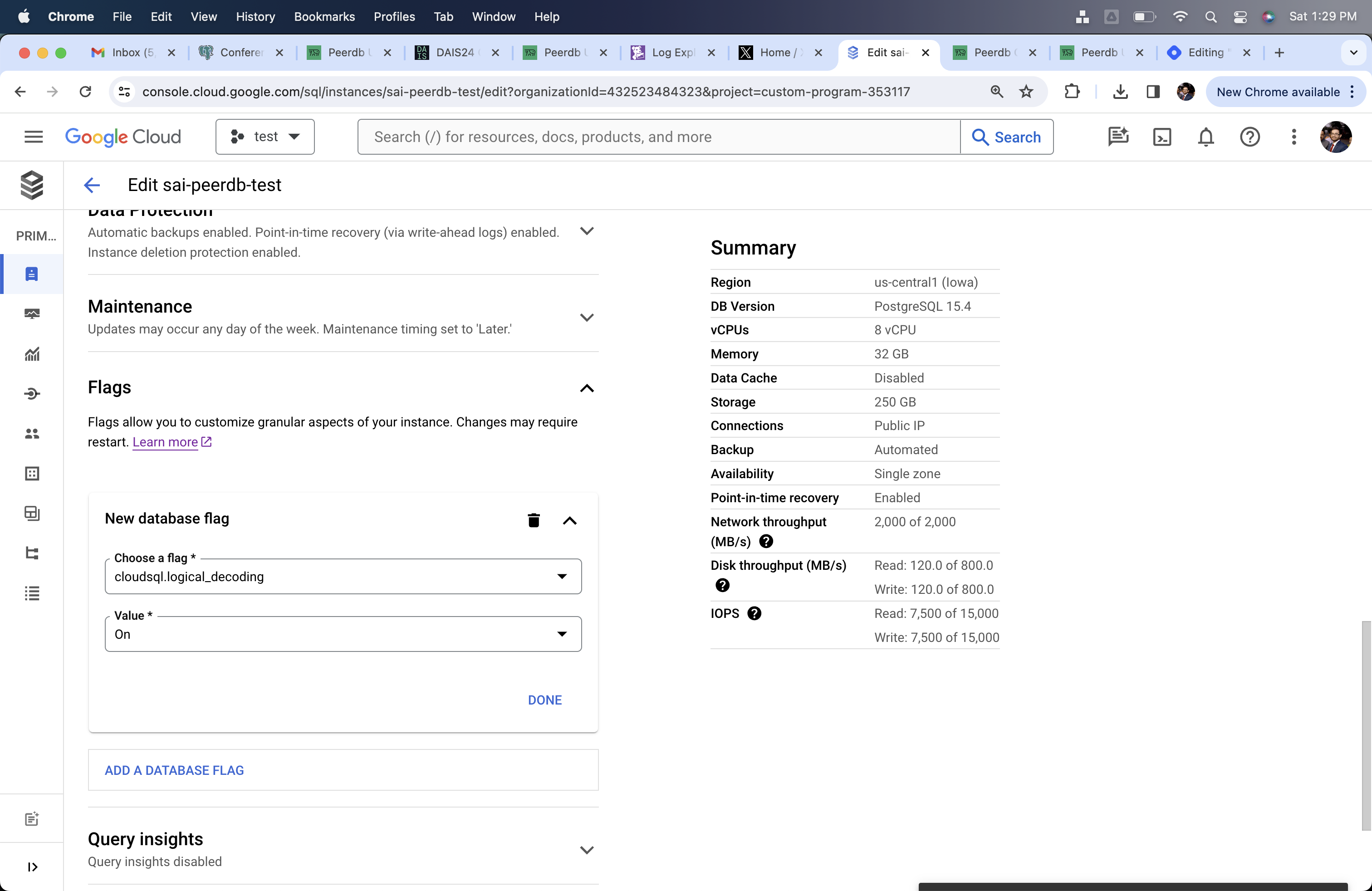
1. Click on **Edit** button on the Overview page.
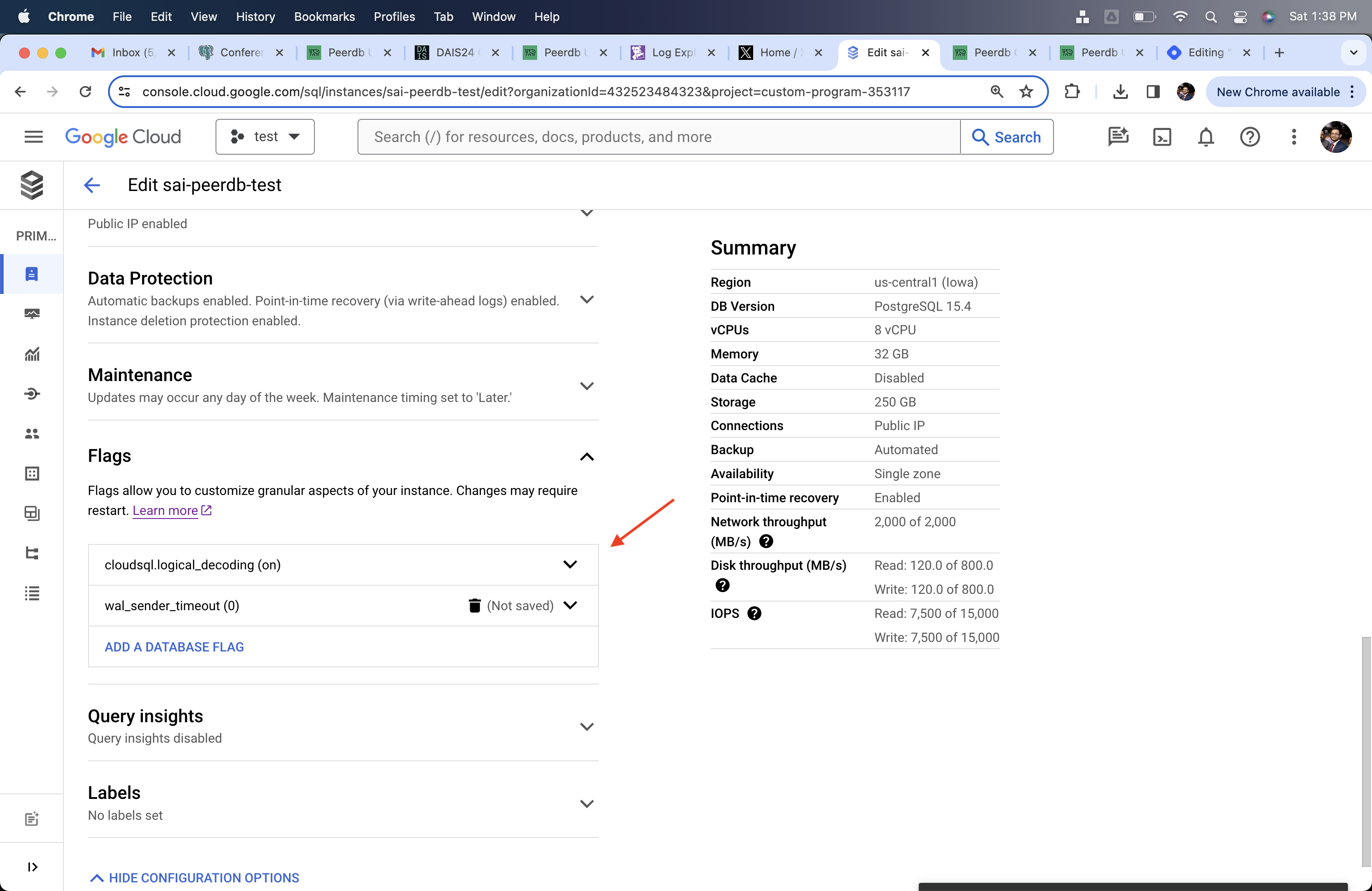
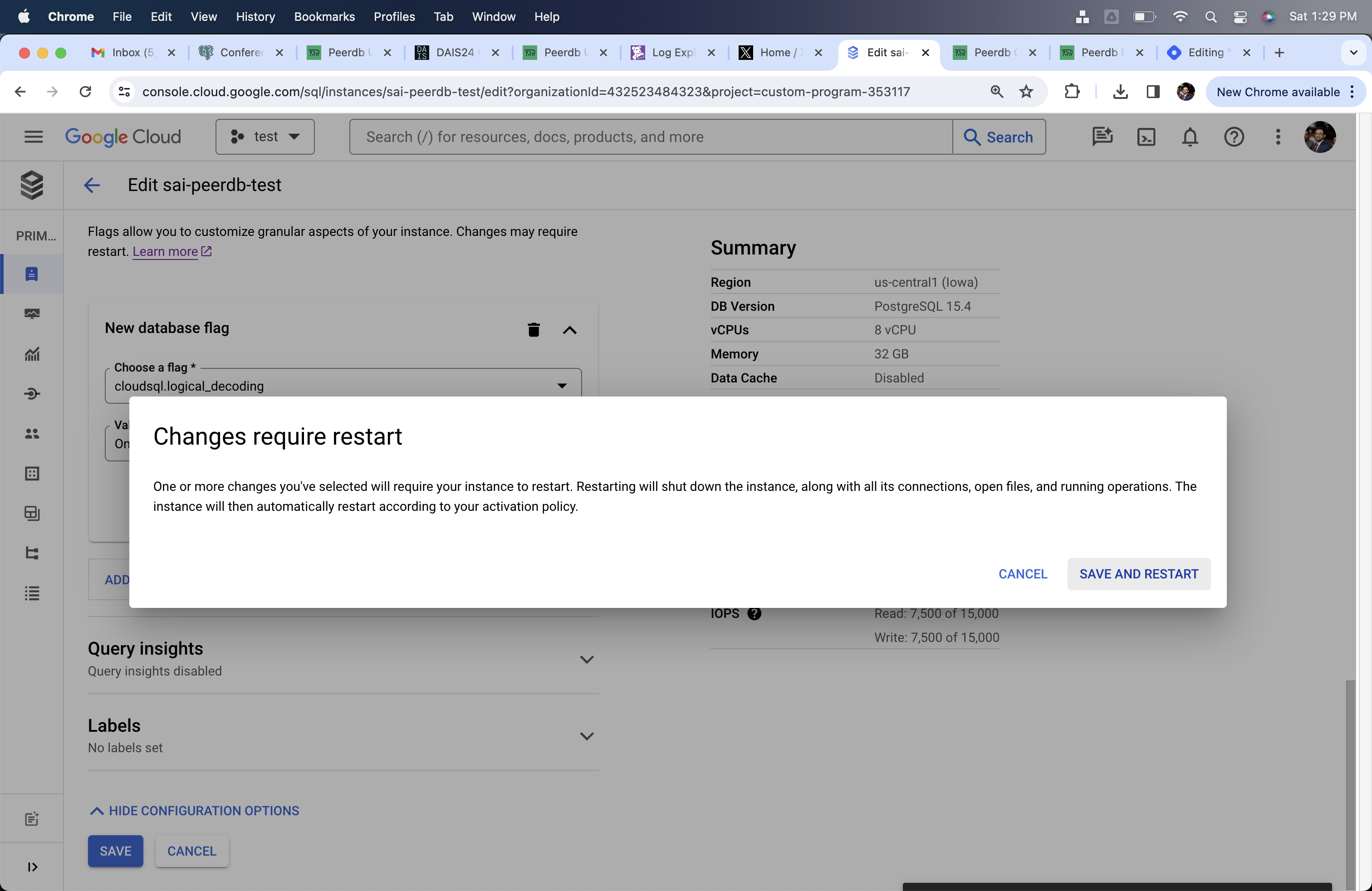
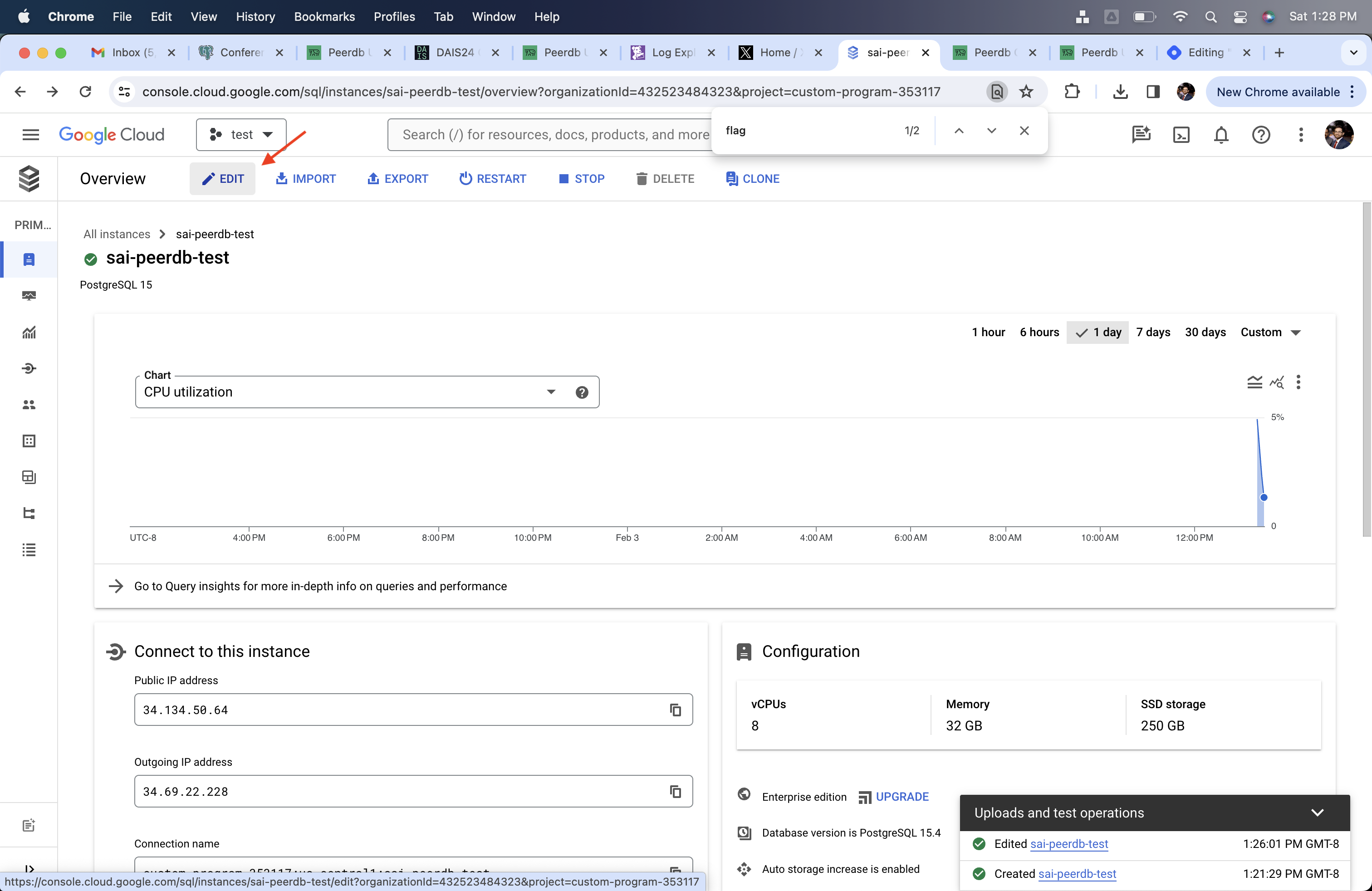 2. Go to Flags and change `cloudsql.logical_decoding` to on and `wal_sender_timeout` to 0. These changes will need restarting your Postgres server.
 ## Creating PeerDB User and Granting permissions
Connect to your CloudSQL Postgres through the admin user and run the below commands:
1. Create a dedicated user for PeerDB:
1. ```sql theme={null}
CREATE USER peerdb_user PASSWORD 'some-password';
```
2. Grant schema-level, read-only access to the user you created in the previous step. The following example shows permissions for the `public` schema. Repeat these commands for each schema containing tables you want to replicate:
1. ```sql theme={null}
GRANT USAGE ON SCHEMA "public" TO peerdb_user;
GRANT SELECT ON ALL TABLES IN SCHEMA "public" TO peerdb_user;
ALTER DEFAULT PRIVILEGES IN SCHEMA "public" GRANT SELECT ON TABLES TO peerdb_user;
```
3. Grant replication privileges to the user:
1. ```sql theme={null}
ALTER USER peerdb_user WITH REPLICATION;
```
4. Create a [publication](https://www.postgresql.org/docs/current/logical-replication-publication.html) with the tables you want to replicate. We strongly recommend only including the tables you need in the publication to avoid performance overhead.
Any table included in the publication must either have a **primary key** defined *or* have its **replica identity** configured to `FULL`.
1. To create a publication for specific tables:
```sql theme={null}
CREATE PUBLICATION peerdb_publication FOR TABLE table_to_replicate, table_to_replicate2;
```
2. To create a publication for all tables in a specific schema:
```sql theme={null}
CREATE PUBLICATION peerdb_publication FOR TABLES IN SCHEMA "public";
```
The `peerdb_publication` publication will contain the set of change events generated from the specified tables, and will later be used to create the MIRROR (replication).
The PeerDB user must not be restricted by RLS policies, as it can lead to missing data. You can disable RLS policies for the user by running the below command:
```sql theme={null}
ALTER USER peerdb_user BYPASSRLS;
```
## PeerDB SSH Tunneling Guide (Optional)
Sometimes to connect to your Postgres database you may need PeerDB to use an SSH tunnel.
This is typically used when your database is not publicly accessible and you need to connect to it a jump server in your VPC.
This is done by creating an SSH tunnel to your jump server and then connecting to the database through the tunnel. All
of this is handled by PeerDB natively.
Generate a key-pair using the following command:
```bash theme={null}
ssh-keygen -t rsa -b 4096 -C "peerdb-ssh-tunnel" -f peerdb_key.pem
```
This will generate a private key (`peerdb_key.pem`) and a public key (`peerdb_key.pub`).
Add the public key to your jump server. This can be done by adding the public key to the `~/.ssh/authorized_keys` file on the jump server.
```bash theme={null}
# On the jump server
cat peerdb_key.pub >> ~/.ssh/authorized_keys
```
When creating a Postgres peer you can specify the option to use an SSH tunnel. There you will be able to provide the private key you generated in the first step along with the jump server details.
## Add PeerDB Cloud IPs to Firewall
If you are using **PeerDB Cloud**, please follow the below steps to add PeerDB IPs to your network.
If your are using SSH Tunnel, then you need to add the PeerDB Cloud IPs to the firewall rules of the Jump Server/Bastion.
1. Go to **Connections** section
## Creating PeerDB User and Granting permissions
Connect to your CloudSQL Postgres through the admin user and run the below commands:
1. Create a dedicated user for PeerDB:
1. ```sql theme={null}
CREATE USER peerdb_user PASSWORD 'some-password';
```
2. Grant schema-level, read-only access to the user you created in the previous step. The following example shows permissions for the `public` schema. Repeat these commands for each schema containing tables you want to replicate:
1. ```sql theme={null}
GRANT USAGE ON SCHEMA "public" TO peerdb_user;
GRANT SELECT ON ALL TABLES IN SCHEMA "public" TO peerdb_user;
ALTER DEFAULT PRIVILEGES IN SCHEMA "public" GRANT SELECT ON TABLES TO peerdb_user;
```
3. Grant replication privileges to the user:
1. ```sql theme={null}
ALTER USER peerdb_user WITH REPLICATION;
```
4. Create a [publication](https://www.postgresql.org/docs/current/logical-replication-publication.html) with the tables you want to replicate. We strongly recommend only including the tables you need in the publication to avoid performance overhead.
Any table included in the publication must either have a **primary key** defined *or* have its **replica identity** configured to `FULL`.
1. To create a publication for specific tables:
```sql theme={null}
CREATE PUBLICATION peerdb_publication FOR TABLE table_to_replicate, table_to_replicate2;
```
2. To create a publication for all tables in a specific schema:
```sql theme={null}
CREATE PUBLICATION peerdb_publication FOR TABLES IN SCHEMA "public";
```
The `peerdb_publication` publication will contain the set of change events generated from the specified tables, and will later be used to create the MIRROR (replication).
The PeerDB user must not be restricted by RLS policies, as it can lead to missing data. You can disable RLS policies for the user by running the below command:
```sql theme={null}
ALTER USER peerdb_user BYPASSRLS;
```
## PeerDB SSH Tunneling Guide (Optional)
Sometimes to connect to your Postgres database you may need PeerDB to use an SSH tunnel.
This is typically used when your database is not publicly accessible and you need to connect to it a jump server in your VPC.
This is done by creating an SSH tunnel to your jump server and then connecting to the database through the tunnel. All
of this is handled by PeerDB natively.
Generate a key-pair using the following command:
```bash theme={null}
ssh-keygen -t rsa -b 4096 -C "peerdb-ssh-tunnel" -f peerdb_key.pem
```
This will generate a private key (`peerdb_key.pem`) and a public key (`peerdb_key.pub`).
Add the public key to your jump server. This can be done by adding the public key to the `~/.ssh/authorized_keys` file on the jump server.
```bash theme={null}
# On the jump server
cat peerdb_key.pub >> ~/.ssh/authorized_keys
```
When creating a Postgres peer you can specify the option to use an SSH tunnel. There you will be able to provide the private key you generated in the first step along with the jump server details.
## Add PeerDB Cloud IPs to Firewall
If you are using **PeerDB Cloud**, please follow the below steps to add PeerDB IPs to your network.
If your are using SSH Tunnel, then you need to add the PeerDB Cloud IPs to the firewall rules of the Jump Server/Bastion.
1. Go to **Connections** section
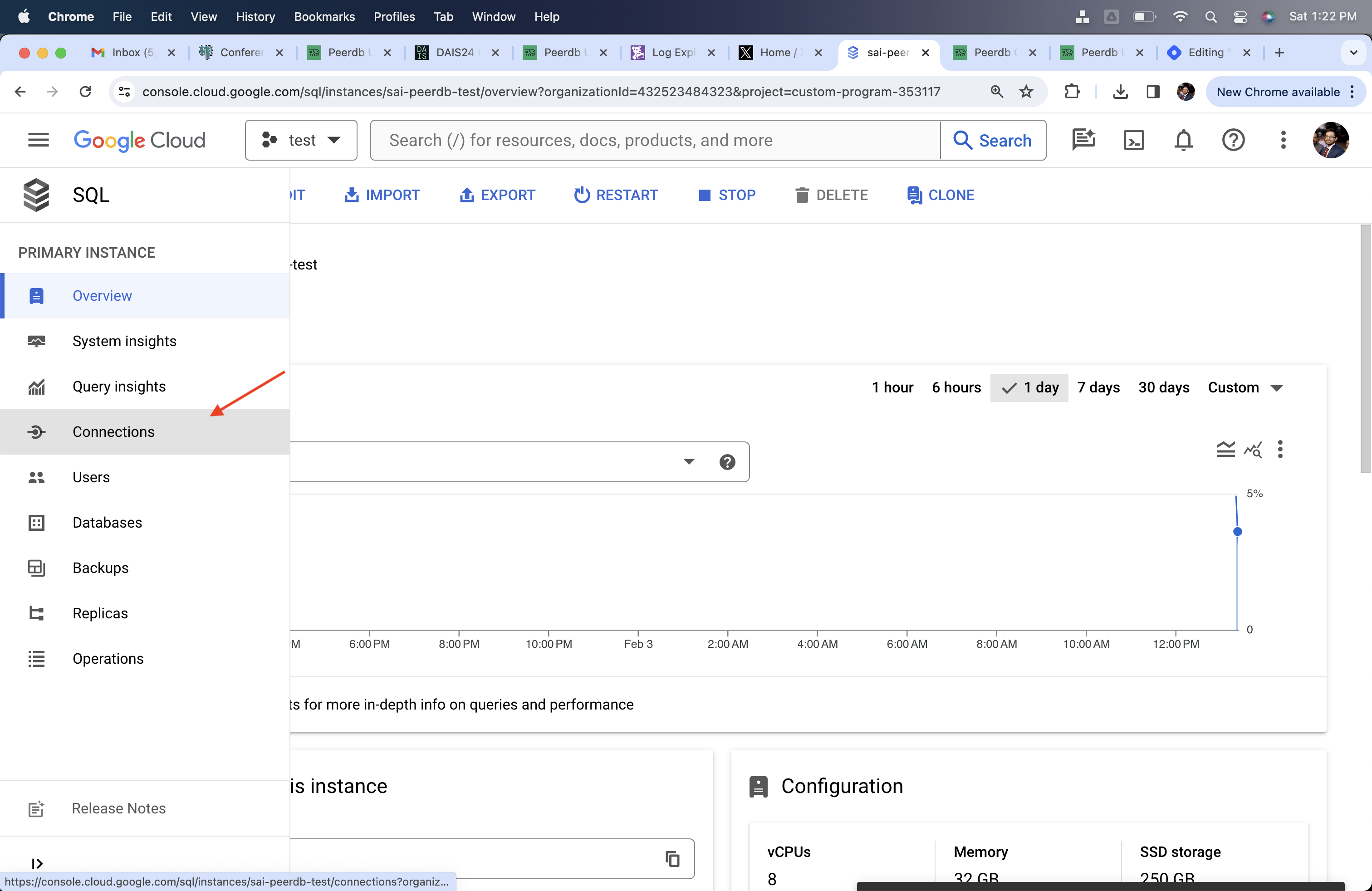 2. Go to the Networking subsection
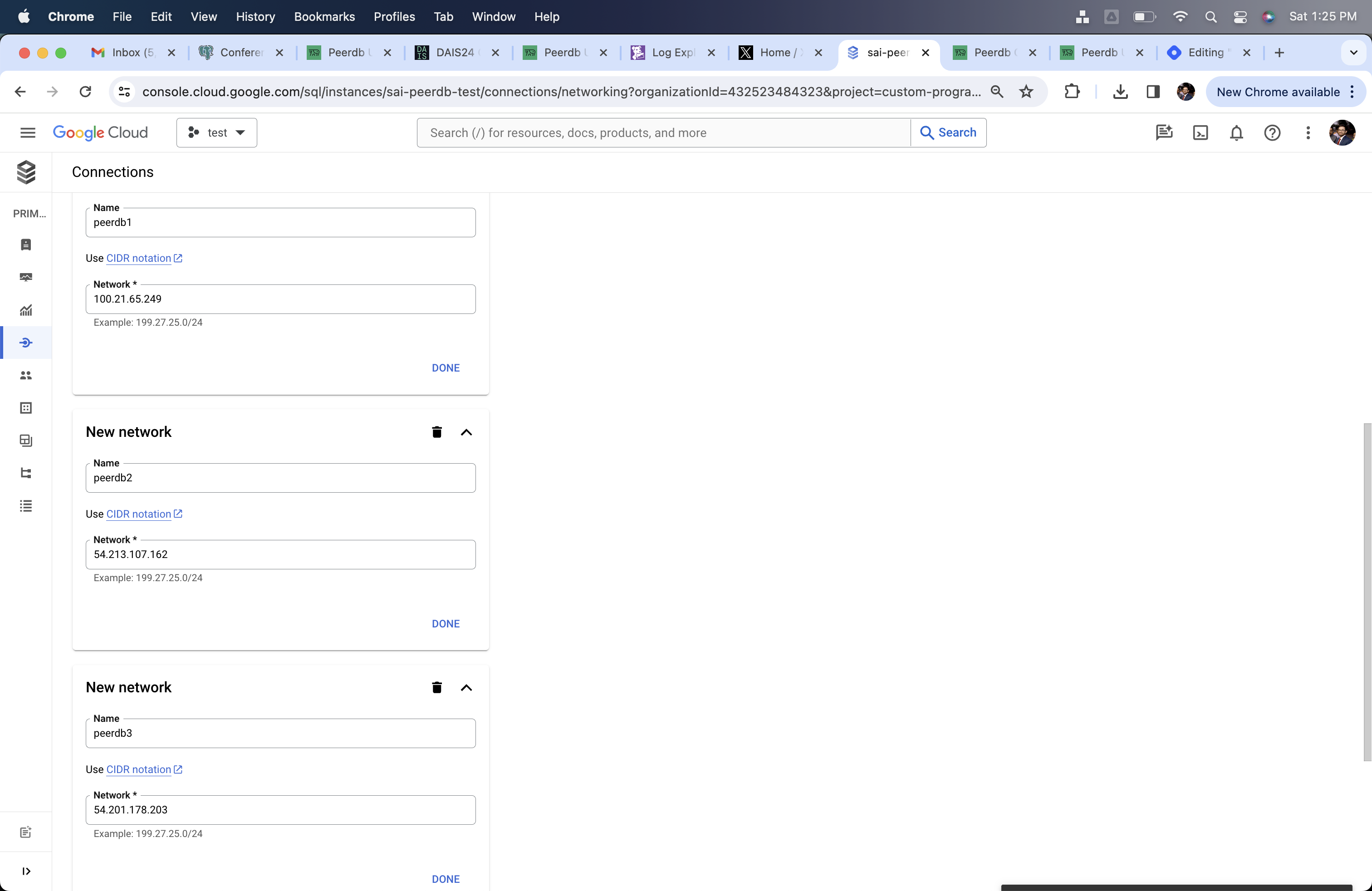
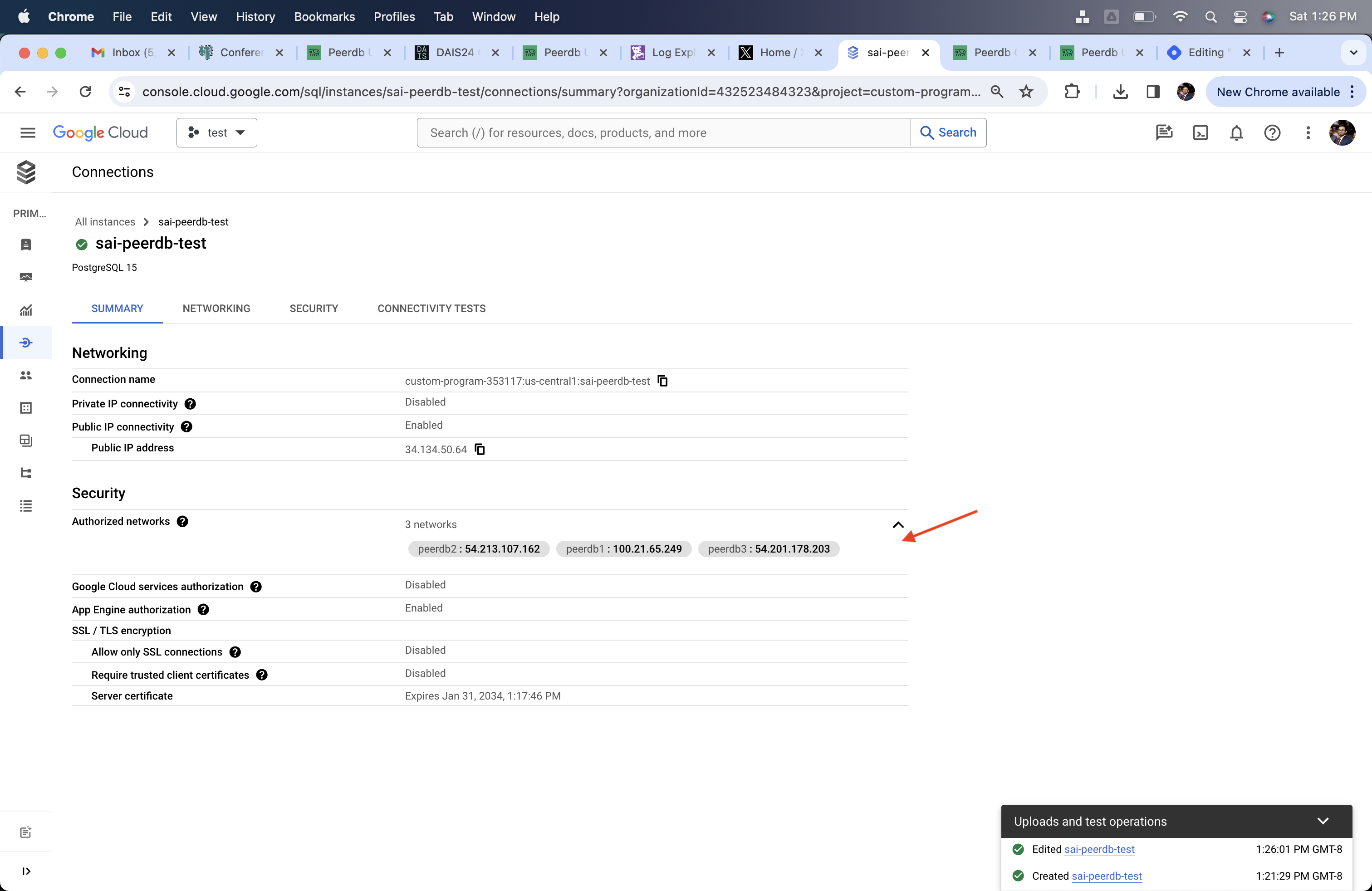
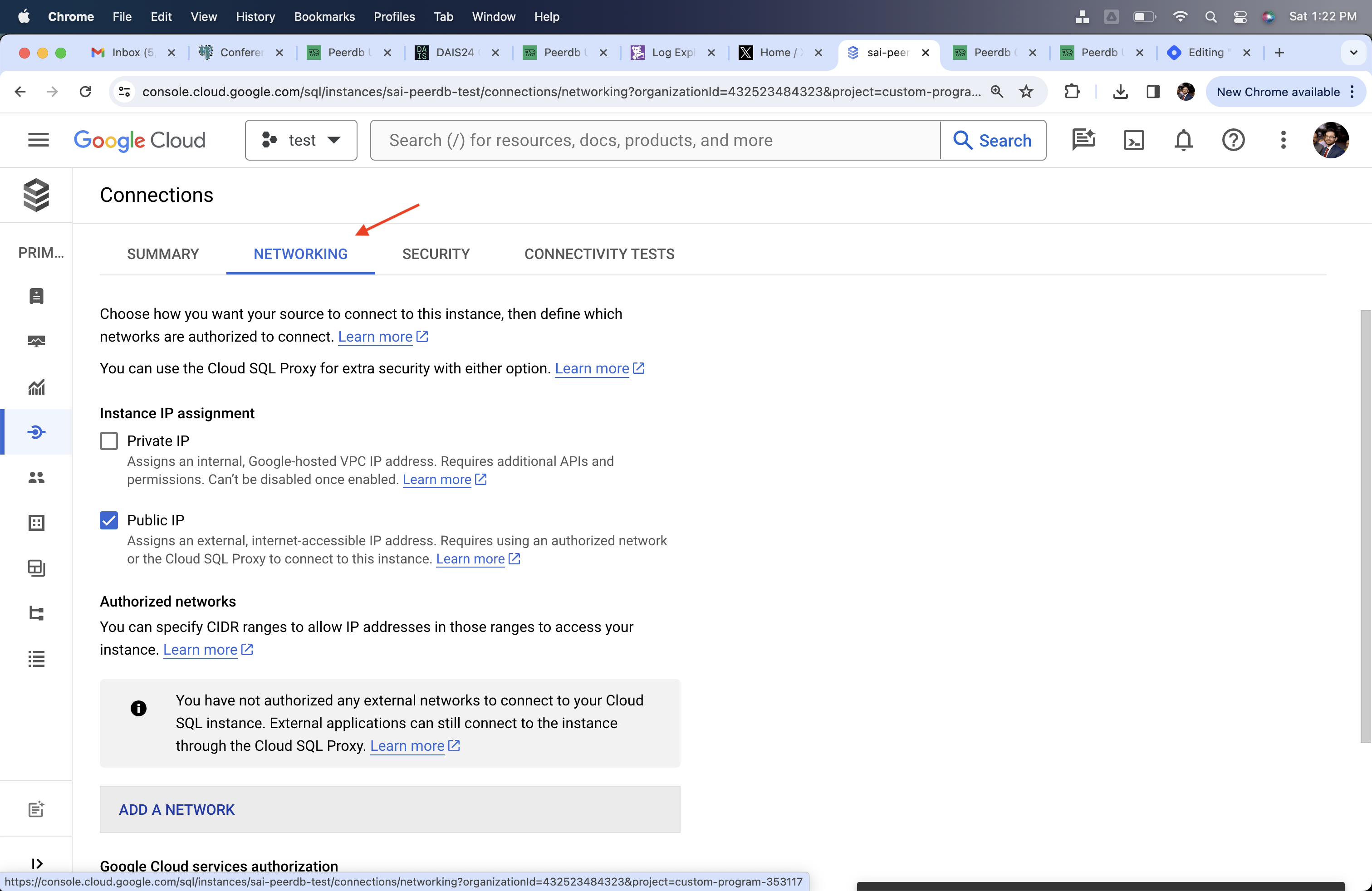 3. Add the [public IPs of your PeerDB Cloud instance](/peerdb-cloud/ip-table)
 ## Create CloudSQL Postgres Peer in PeerDB
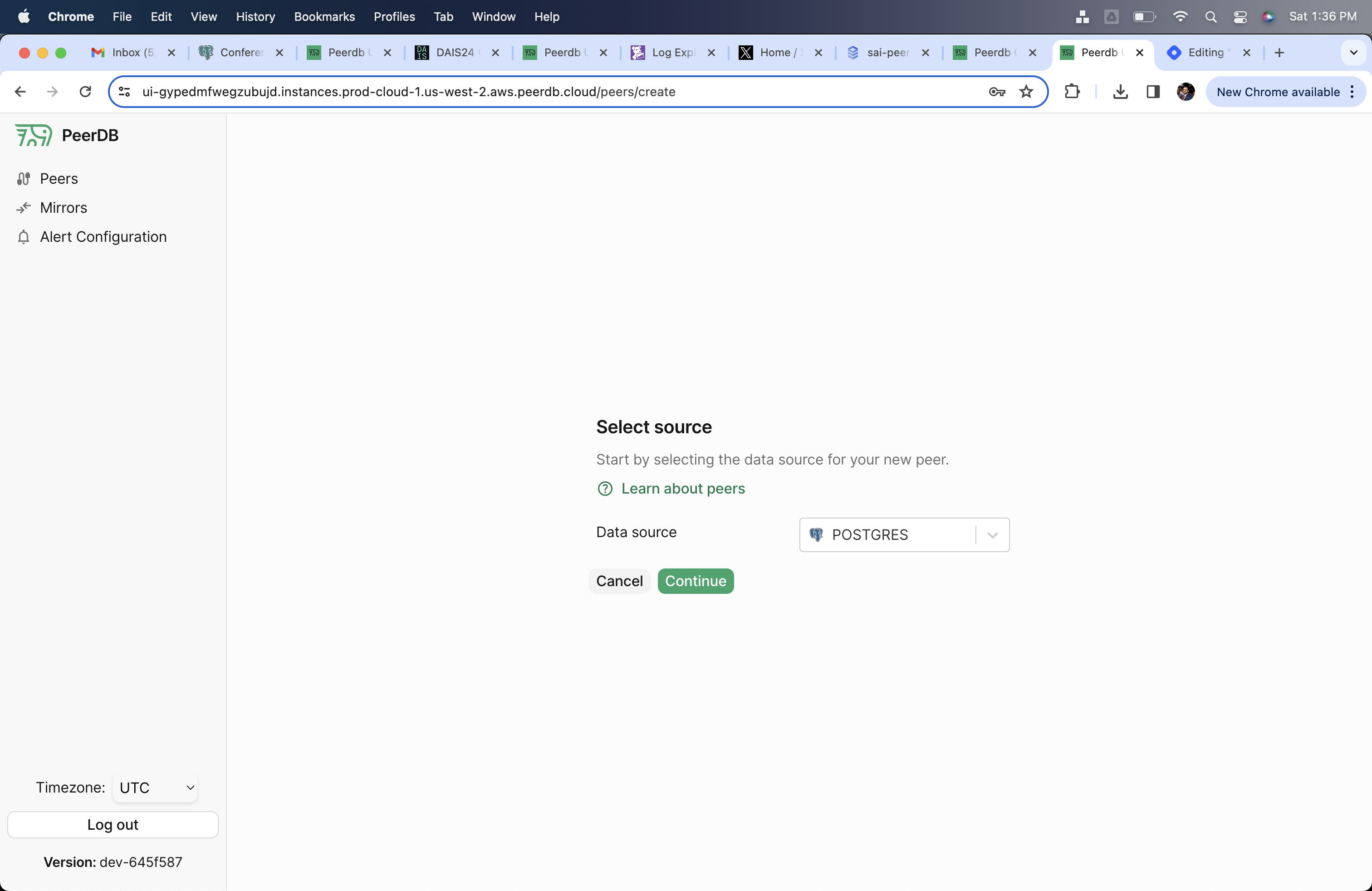
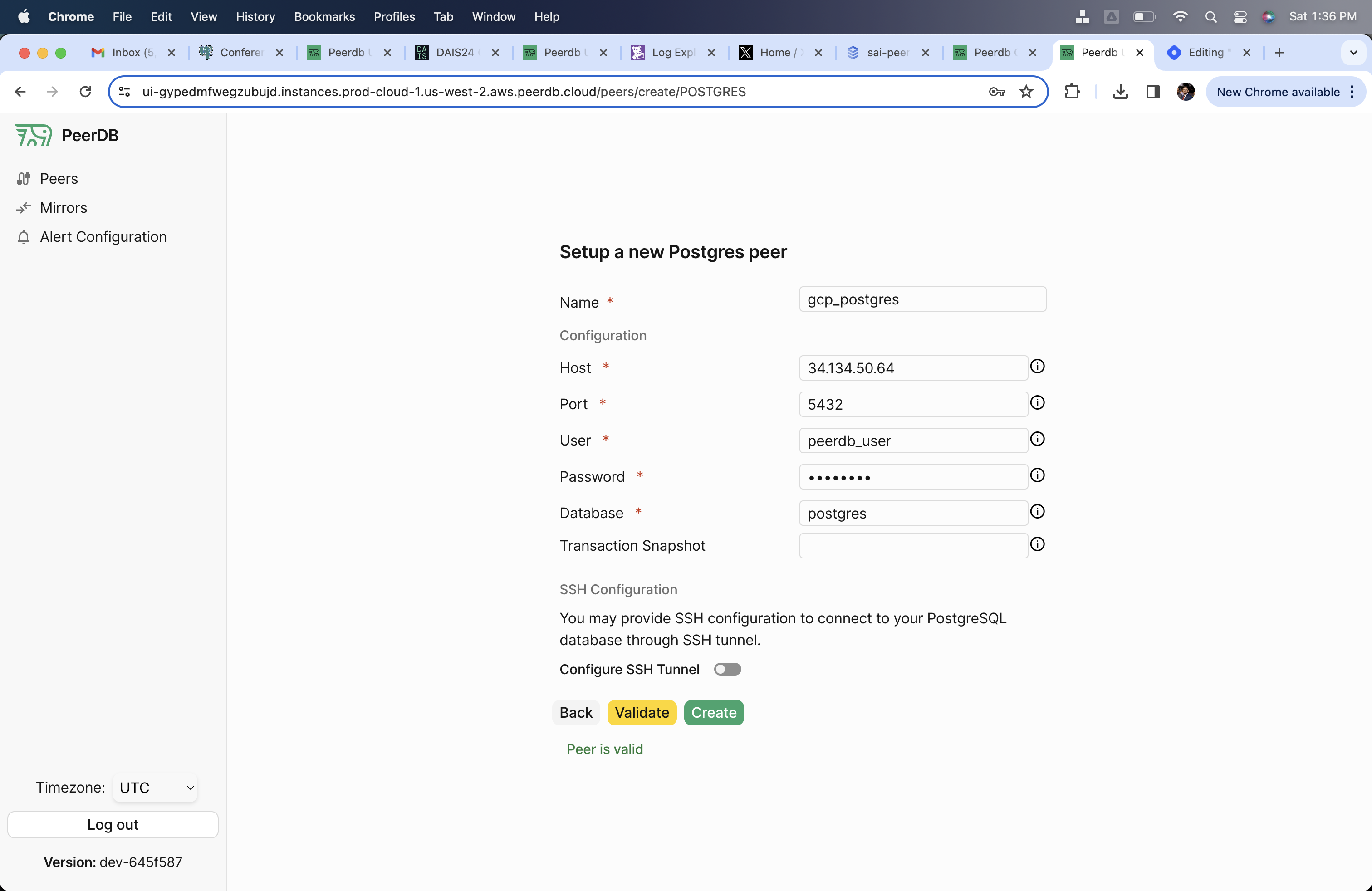
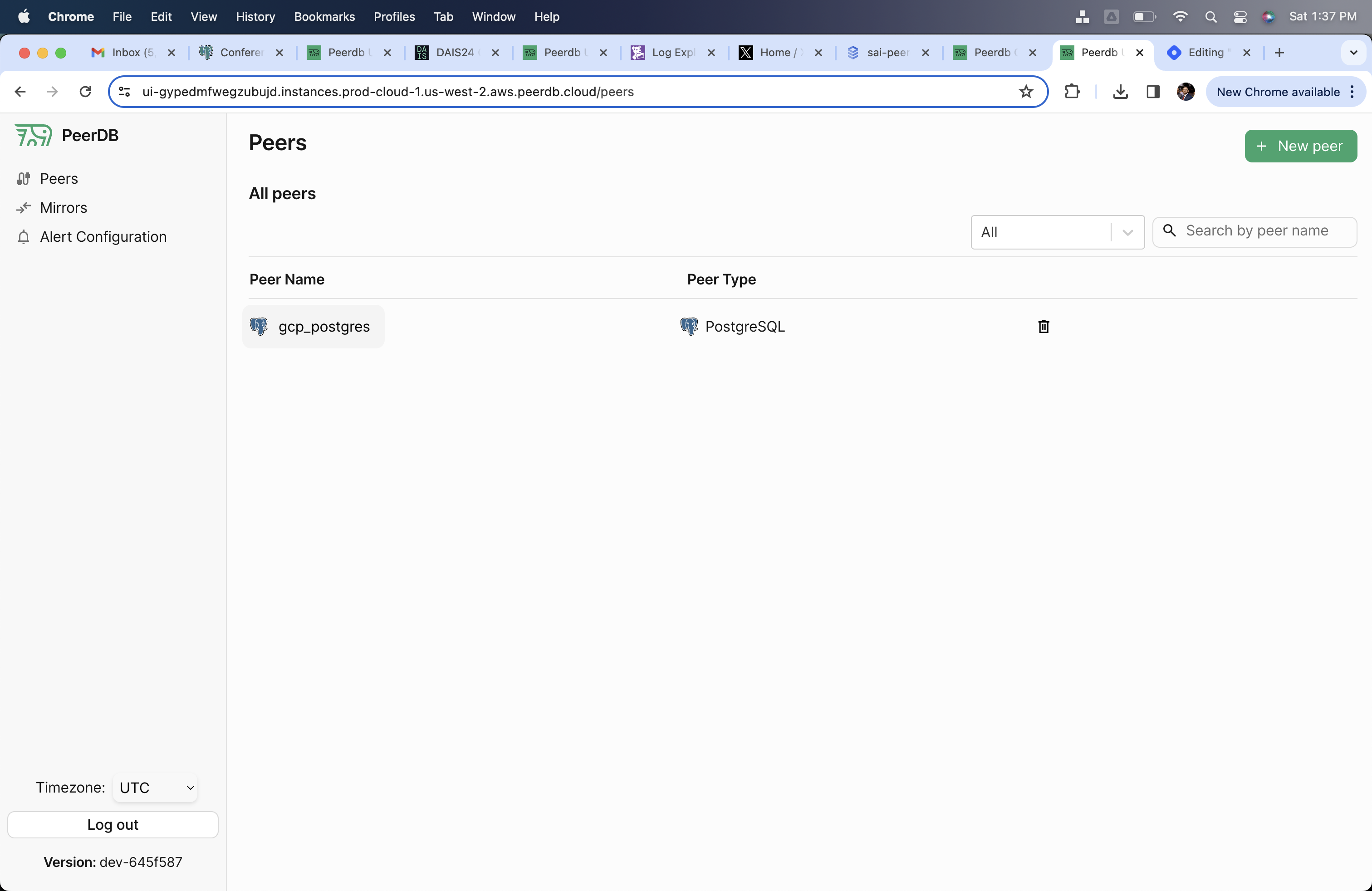
Through the PeerDB UI, create the CloudSQL Peer using the `peerdb_user` that you created in the previous step.
## Create CloudSQL Postgres Peer in PeerDB
Through the PeerDB UI, create the CloudSQL Peer using the `peerdb_user` that you created in the previous step.