> ## Documentation Index
> Fetch the complete documentation index at: https://docs.peerdb.io/llms.txt
> Use this file to discover all available pages before exploring further.
# Confluent Cloud Setup Guide
Kafka as a destination (including the Confluent and Redpanda variants) is deprecated and no longer actively maintained. It remains fully functional and no code is currently being removed. For new mirrors, we recommend ClickHouse, ClickHouse Cloud, or Postgres as the destination.
# Prerequisites
To connect Confluent Cloud to PeerDB, you need a Confluent Cloud account with Kafka Server running.
# Setup Instructions
## Gather the following details from Confluent Cloud
```toml theme={null}
bootstrap.servers=:9092
security.protocol=SASL_SSL
sasl.mechanisms=PLAIN
sasl.username={{ CLUSTER_API_KEY }}
sasl.password={{ CLUSTER_API_SECRET }}
```
## Create the Kafka Peer
And then in UI you can create the Confluent Cloud / Kafka peer like so:
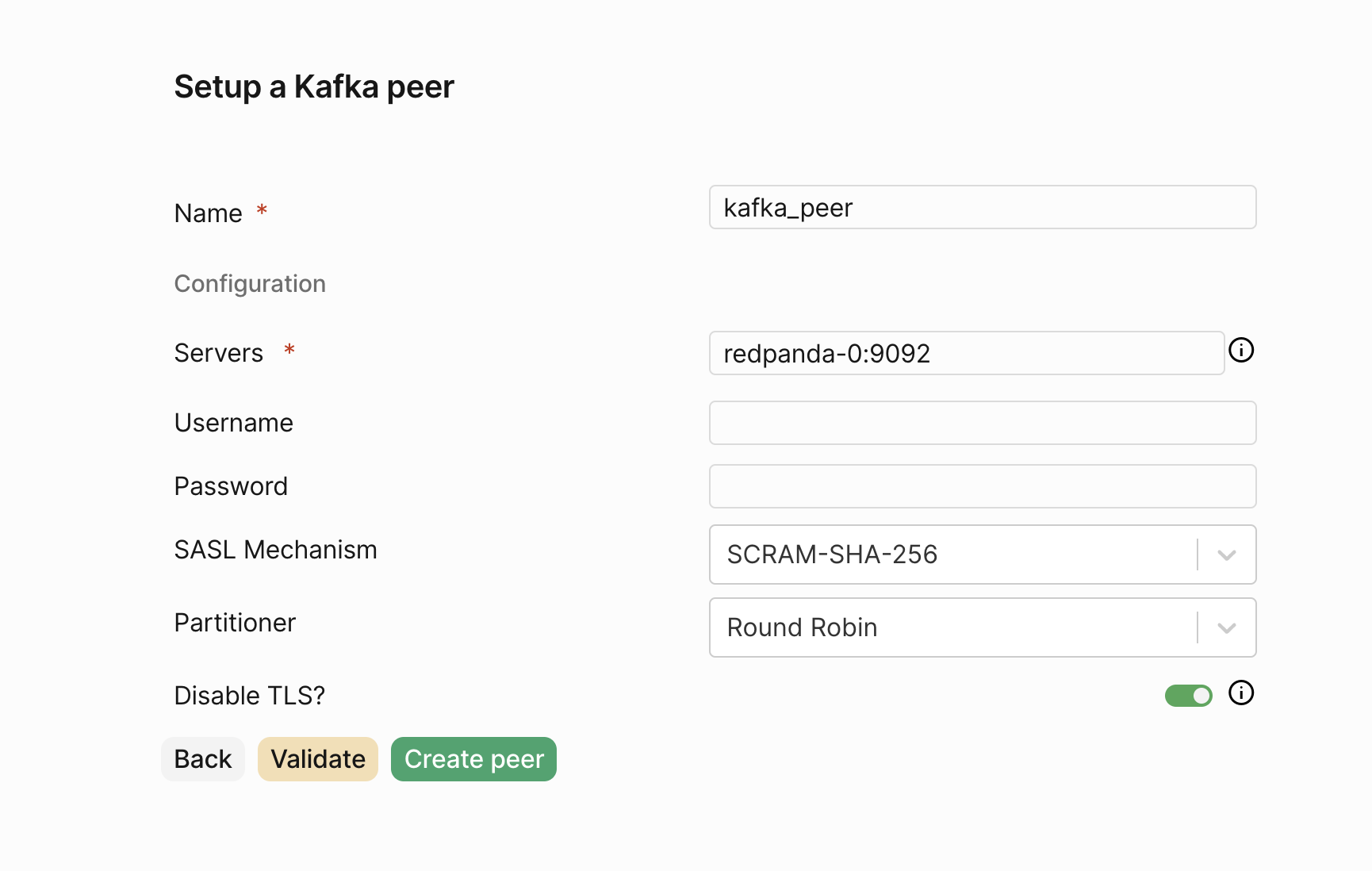 1. Click on `Create Peer`
2. Select `Kafka`
3. For `Name` use a desired name, e.g. `confluent_kafka_1`, only lowercase alphanumeric and underscores are allowed.
4. For `Bootstrap Servers` use the `bootstrap.servers` value from the previous step. Multiple servers can be specified as a comma separated list.
5. For `Security Protocol` use `SASL_SSL`.
6. For `SASL Mechanism` use `PLAIN`.
7. For `Username` use the `CLUSTER_API_KEY` from the previous step.
8. For `Password` use the `CLUSTER_API_SECRET` from the previous step.
9. Click `Validate Connection`
10. Click `Create Peer`
PeerDB only supports plaintext and SASL authentication. If username isn't supplied then PeerDB will attempt to connect without authentication.
Partitioner can be usually be ignored; it maps to partitioning strategies in [franz-go.](https://pkg.go.dev/github.com/twmb/franz-go/pkg/kgo#Partitioner) To set partitioning keys you'll need to specify `Script` when creating mirror, see [Lua reference](https://docs.peerdb.io/lua/reference) for details.
1. Click on `Create Peer`
2. Select `Kafka`
3. For `Name` use a desired name, e.g. `confluent_kafka_1`, only lowercase alphanumeric and underscores are allowed.
4. For `Bootstrap Servers` use the `bootstrap.servers` value from the previous step. Multiple servers can be specified as a comma separated list.
5. For `Security Protocol` use `SASL_SSL`.
6. For `SASL Mechanism` use `PLAIN`.
7. For `Username` use the `CLUSTER_API_KEY` from the previous step.
8. For `Password` use the `CLUSTER_API_SECRET` from the previous step.
9. Click `Validate Connection`
10. Click `Create Peer`
PeerDB only supports plaintext and SASL authentication. If username isn't supplied then PeerDB will attempt to connect without authentication.
Partitioner can be usually be ignored; it maps to partitioning strategies in [franz-go.](https://pkg.go.dev/github.com/twmb/franz-go/pkg/kgo#Partitioner) To set partitioning keys you'll need to specify `Script` when creating mirror, see [Lua reference](https://docs.peerdb.io/lua/reference) for details.