> ## Documentation Index
> Fetch the complete documentation index at: https://docs.peerdb.io/llms.txt
> Use this file to discover all available pages before exploring further.
# ClickHouse Cloud Setup Guide
PeerDB is now natively integrated with ClickHouse Cloud!
We recently announced the Postgres CDC connector in ClickPipes, now available in Public Preview.
This connector is fully powered by PeerDB.
As a ClickHouse Cloud customer, you get a seamless, native experience for moving data from your Postgres databases to ClickHouse Cloud. Simply navigate to the **Data Sources** tab and add a Postgres source to start ingesting data.
This is a document on setting a [Clickhouse Cloud](https://clickhouse.com/cloud) peer for PeerDB.
If you are using ClickHouse Cloud, we recommend using [PeerDB Cloud](https://app.peerdb.cloud/), which comes with free trial and highly competitive pricing and PeerDB Cloud is specifically designed for ClickHouse Cloud.
### Steps on setting up the ClickHouse Cloud peer
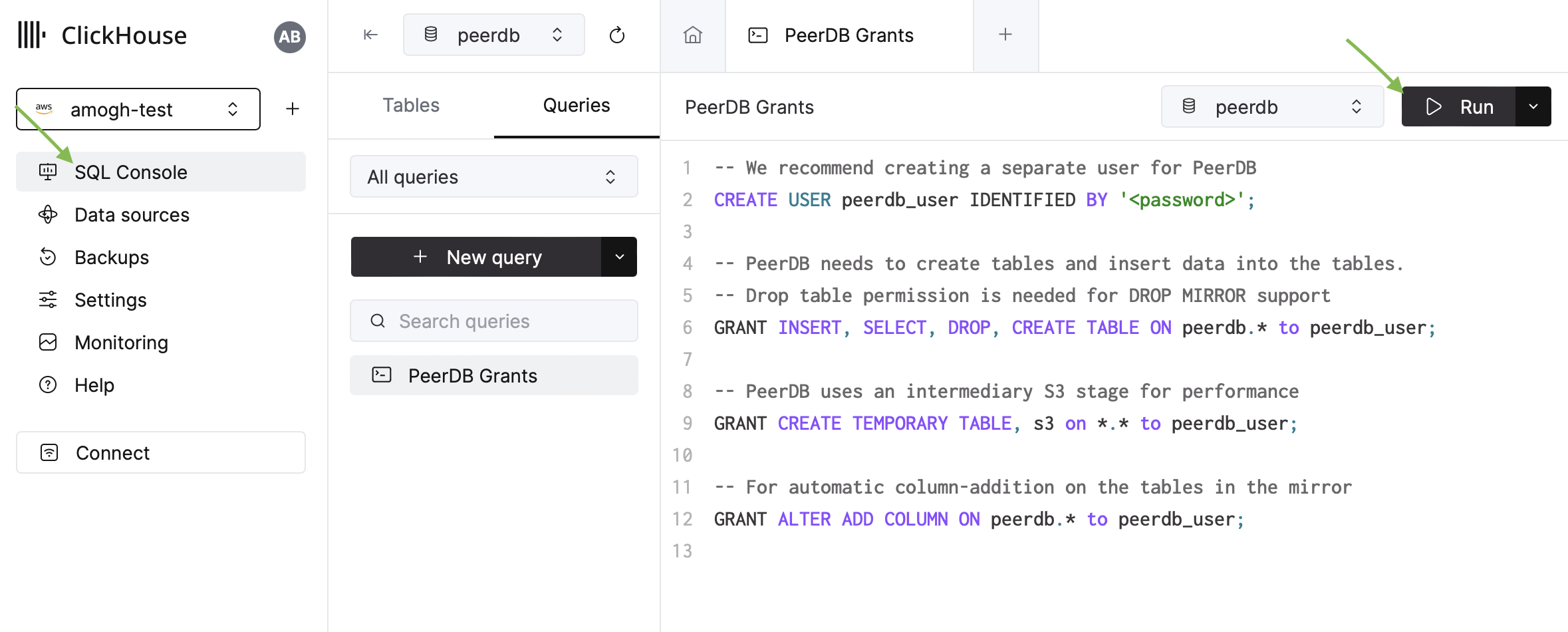
Head over the **SQL Console** in the ClickHouse Cloud UI.
 #### Permissions
1. Create a separate database for the ClickHouse peer called peerdb. This is where tables will be auto-created and synced by PeerDB.
```sql theme={null}
CREATE DATABASE peerdb;
```
2. Create a Clickhouse user for PeerDB with the following permissions:
```sql theme={null}
-- We recommend creating a separate user for PeerDB
CREATE USER peerdb_user IDENTIFIED BY '';
-- PeerDB needs to create tables and insert data into the tables.
-- Drop table permission is needed for DROP MIRROR support
GRANT INSERT, SELECT, DROP, CREATE TABLE ON peerdb.* to peerdb_user;
-- PeerDB uses an intermediary S3 stage for performance
GRANT CREATE TEMPORARY TABLE, s3 on *.* to peerdb_user;
-- For automatic column-addition on the tables in the mirror
GRANT ALTER ADD COLUMN ON peerdb.* to peerdb_user;
```
#### Whitelist PeerDB Cloud IPs
If you are using PeerDB Cloud, you need to whitelist the PeerDB Cloud IPs in the ClickHouse Cloud settings tab.
#### Permissions
1. Create a separate database for the ClickHouse peer called peerdb. This is where tables will be auto-created and synced by PeerDB.
```sql theme={null}
CREATE DATABASE peerdb;
```
2. Create a Clickhouse user for PeerDB with the following permissions:
```sql theme={null}
-- We recommend creating a separate user for PeerDB
CREATE USER peerdb_user IDENTIFIED BY '';
-- PeerDB needs to create tables and insert data into the tables.
-- Drop table permission is needed for DROP MIRROR support
GRANT INSERT, SELECT, DROP, CREATE TABLE ON peerdb.* to peerdb_user;
-- PeerDB uses an intermediary S3 stage for performance
GRANT CREATE TEMPORARY TABLE, s3 on *.* to peerdb_user;
-- For automatic column-addition on the tables in the mirror
GRANT ALTER ADD COLUMN ON peerdb.* to peerdb_user;
```
#### Whitelist PeerDB Cloud IPs
If you are using PeerDB Cloud, you need to whitelist the PeerDB Cloud IPs in the ClickHouse Cloud settings tab.
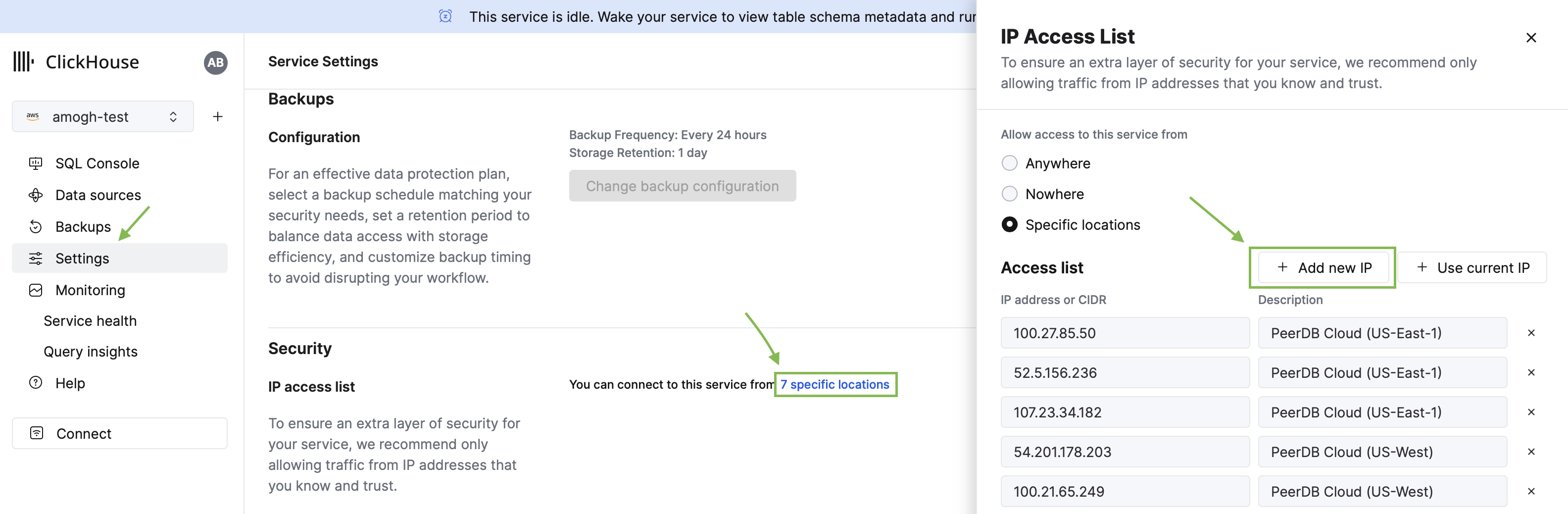 You can find the IPs of your PeerDB instance [here](/peerdb-cloud/ip-table).
3. ClickHouse has several ports exposed, and PeerDB requires to use a port that exposes the `ClickHouse native protocol` which by default is `9440` for the secure TLS-enabled port and `9000` for the non-TLS port. If the default ports have been changed, please adjust them accordingly.
We do not recommend using the non-TLS enabled port for ClickHouse. If this is needed, please also check the `Disable TLS?` option when creating the Clickhouse peer (as seen below).
4. If you are using [PeerDB OSS](https://github.com/PeerDB-io/peerdb), we use [MinIO](https://min.io/) as the internal transient stage. You might need to adjust your firewall rules to **allow connections from ClickHouse to MinIO**.
In [PeerDB Cloud](https://app.peerdb.cloud/), we abstract all of this from you. If you run into issues, please reach out to [support@peerdb.io](mailto:support@peerdb.io) or join our Slack [channel](https://slack.peerdb.io).
5. Create the ClickHouse Peer through PeerDB UI
You can find the IPs of your PeerDB instance [here](/peerdb-cloud/ip-table).
3. ClickHouse has several ports exposed, and PeerDB requires to use a port that exposes the `ClickHouse native protocol` which by default is `9440` for the secure TLS-enabled port and `9000` for the non-TLS port. If the default ports have been changed, please adjust them accordingly.
We do not recommend using the non-TLS enabled port for ClickHouse. If this is needed, please also check the `Disable TLS?` option when creating the Clickhouse peer (as seen below).
4. If you are using [PeerDB OSS](https://github.com/PeerDB-io/peerdb), we use [MinIO](https://min.io/) as the internal transient stage. You might need to adjust your firewall rules to **allow connections from ClickHouse to MinIO**.
In [PeerDB Cloud](https://app.peerdb.cloud/), we abstract all of this from you. If you run into issues, please reach out to [support@peerdb.io](mailto:support@peerdb.io) or join our Slack [channel](https://slack.peerdb.io).
5. Create the ClickHouse Peer through PeerDB UI
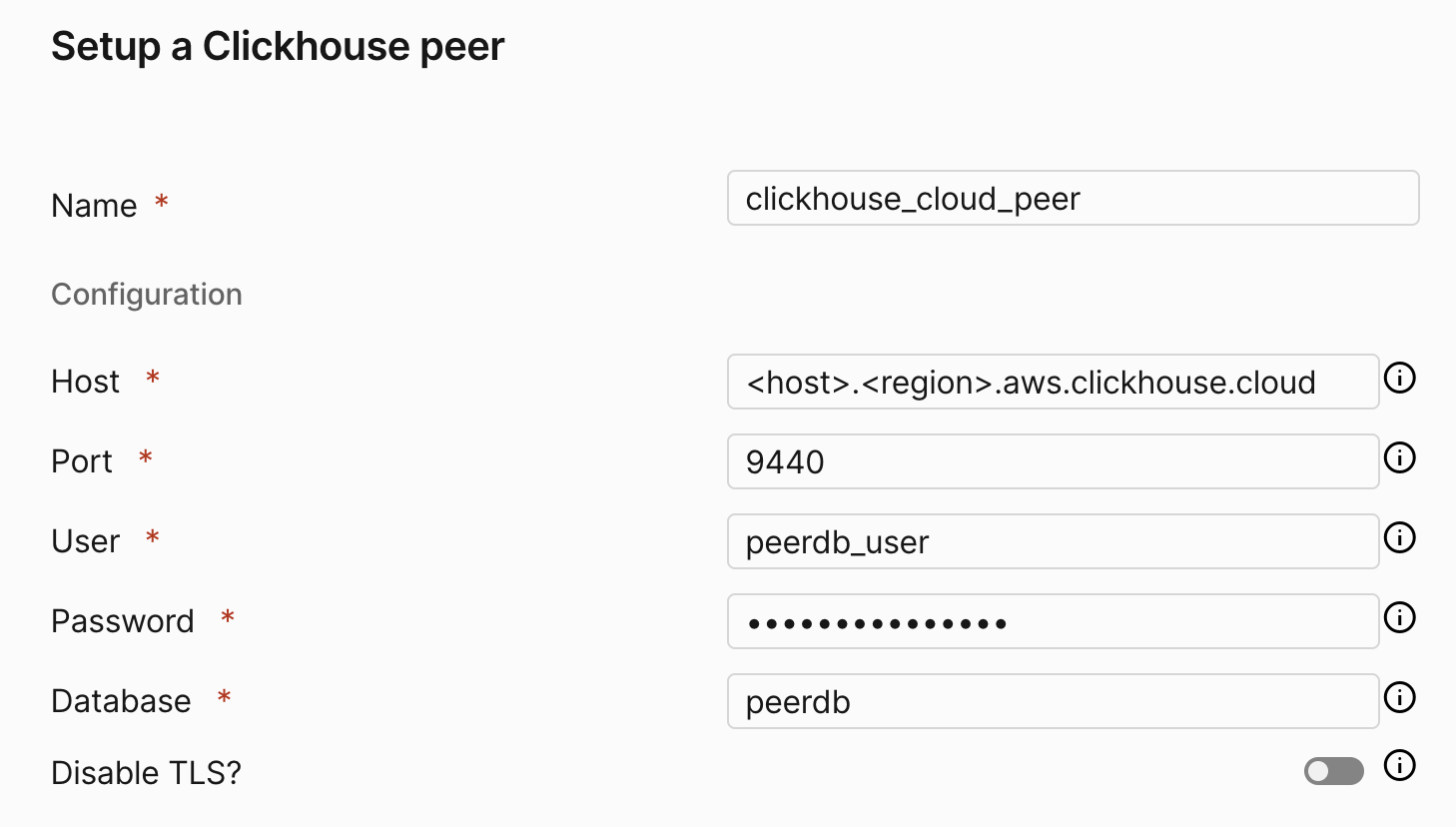 Enter all the details `Name`, `Host`, `Port` (as determined above), `User`, `Password` and `Database`.
6. Click on `Validate` to ensure that the connection is successful.
7. Click on `Create` to create the ClickHouse Peer.
### Troubleshooting
Here is a list of some validation errors that you might encounter and how to resolve them:
**You may need to disable TLS**
You may need to disable TLS. Validation errors such as the following may occur if the connection is not successful:
```
failed to ping to Clickhouse peer: tls:
first record does not look like a TLS handshake
```
**EOF**
If you see the following error, it means that the connection to the ClickHouse peer could not be established:
```
failed to open connection to Clickhouse peer:
failed to ping to Clickhouse peer: EOF
```
Please try the following:
1. Ensure that the PeerDB IP is whitelisted in the ClickHouse server. If you are using PeerDB Cloud, you can find the IPs of your PeerDB instance [here](/peerdb-cloud/ip-table).
2. You may need to enable TLS.
**Stuck on Validating...**
This means the port entered is incorrect. Please ensure that the port is correct and the ClickHouse server is reachable from the PeerDB server.
Enter all the details `Name`, `Host`, `Port` (as determined above), `User`, `Password` and `Database`.
6. Click on `Validate` to ensure that the connection is successful.
7. Click on `Create` to create the ClickHouse Peer.
### Troubleshooting
Here is a list of some validation errors that you might encounter and how to resolve them:
**You may need to disable TLS**
You may need to disable TLS. Validation errors such as the following may occur if the connection is not successful:
```
failed to ping to Clickhouse peer: tls:
first record does not look like a TLS handshake
```
**EOF**
If you see the following error, it means that the connection to the ClickHouse peer could not be established:
```
failed to open connection to Clickhouse peer:
failed to ping to Clickhouse peer: EOF
```
Please try the following:
1. Ensure that the PeerDB IP is whitelisted in the ClickHouse server. If you are using PeerDB Cloud, you can find the IPs of your PeerDB instance [here](/peerdb-cloud/ip-table).
2. You may need to enable TLS.
**Stuck on Validating...**
This means the port entered is incorrect. Please ensure that the port is correct and the ClickHouse server is reachable from the PeerDB server.