> ## Documentation Index
> Fetch the complete documentation index at: https://docs.peerdb.io/llms.txt
> Use this file to discover all available pages before exploring further.

# BigQuery Setup Guide

1. [Create a dedicated Service Account](https://cloud.google.com/iam/docs/keys-create-delete#iam-service-account-keys-create-console) for PeerDB through Google Cloud Console and specify `BigQuery Data Editor`, `BigQuery Data Viewer`, `BigQuery Job User`, `BigQuery Resource Viewer`
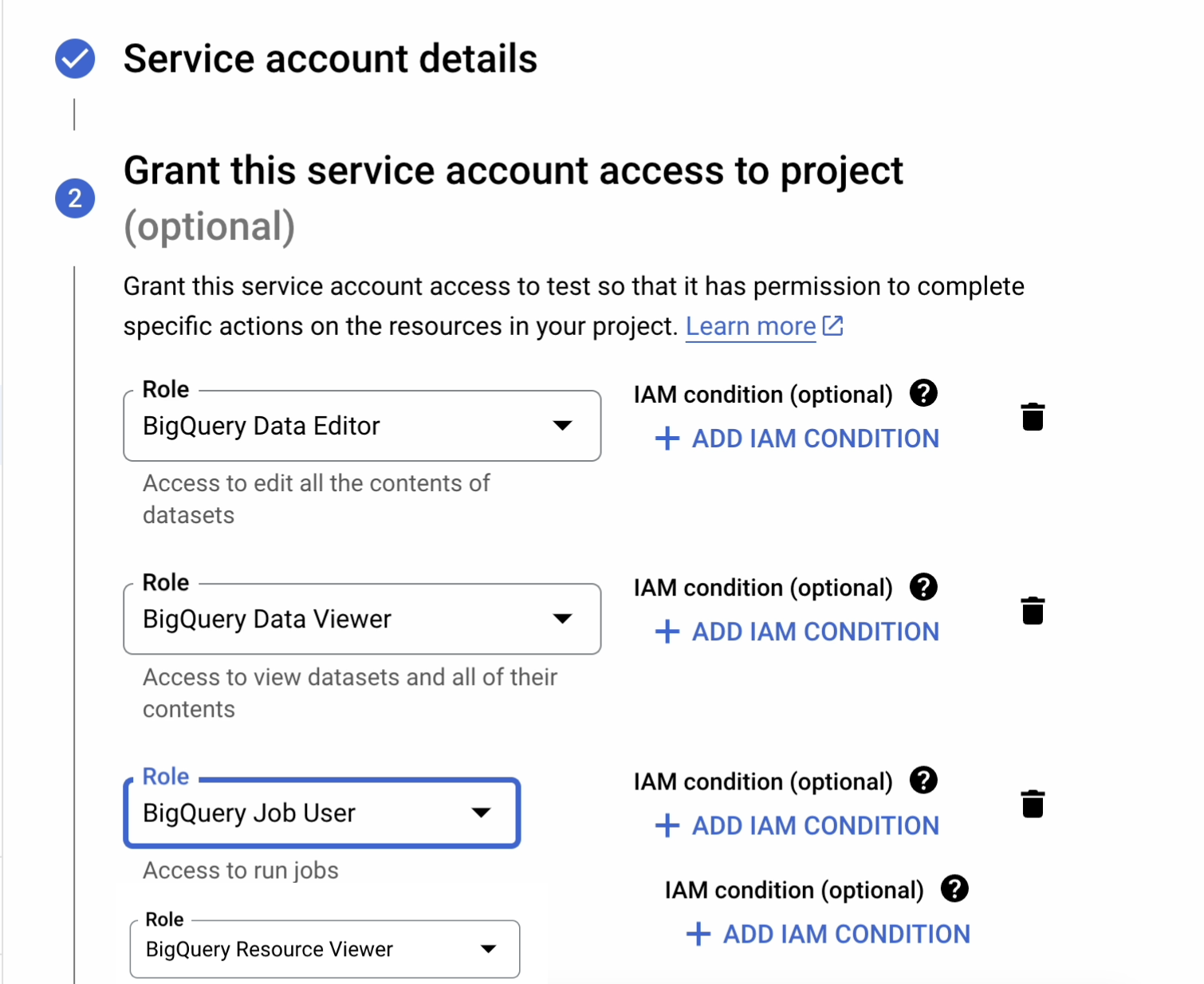
   <Frame caption="Create a dedicated Service Account For PeerDB and grant the necessary permissions">
     <img src="https://mintcdn.com/peerdb/L54DxDXK99_p-wL9/images/setup/bq-peerdb-ui.png?fit=max&auto=format&n=L54DxDXK99_p-wL9&q=85&s=8f6b4d4852b7e2f25f3d76af242bf360" width="1510" height="1234" data-path="images/setup/bq-peerdb-ui.png" />
   </Frame>

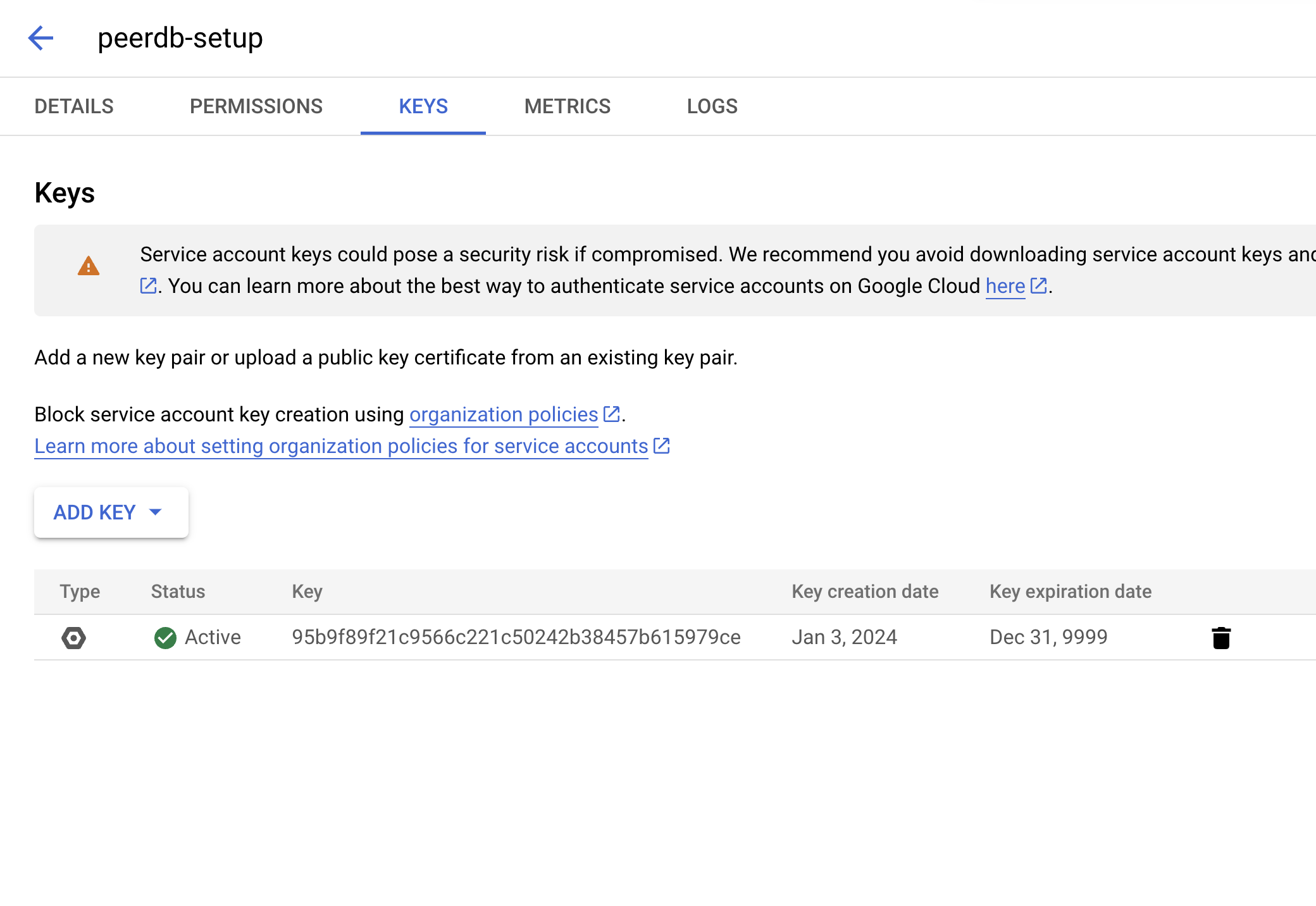
2. Add a key to the above created service account
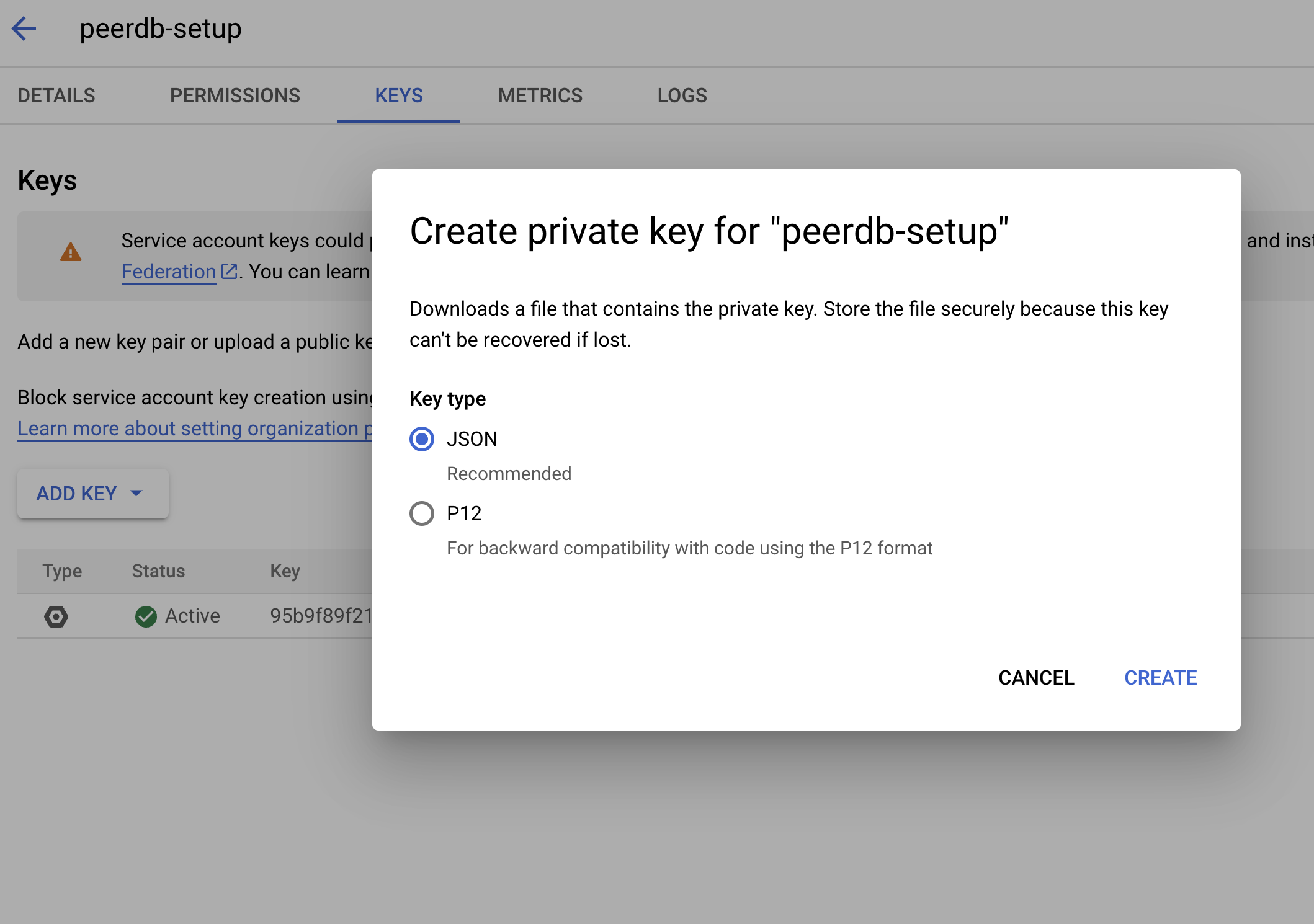
   <Frame caption="Add Key to the Service Account">
     <img src="https://mintcdn.com/peerdb/L54DxDXK99_p-wL9/images/setup/bq-add-key-1.png?fit=max&auto=format&n=L54DxDXK99_p-wL9&q=85&s=848581b8fb9968cf2e0d7ad9e2a5d97e" width="2118" height="1490" data-path="images/setup/bq-add-key-1.png" />
   </Frame>

   <Frame caption="Key Added to the Service Account">
     <img src="https://mintcdn.com/peerdb/L54DxDXK99_p-wL9/images/setup/bq-add-key-2.png?fit=max&auto=format&n=L54DxDXK99_p-wL9&q=85&s=ab351ed15edb842642b172d8fa3ca31f" width="2080" height="1432" data-path="images/setup/bq-add-key-2.png" />
   </Frame>

3. Create a dataset dedicated to PeerDB with the name you prefer.

4. Using this service account key create the peer using PeerDB UI
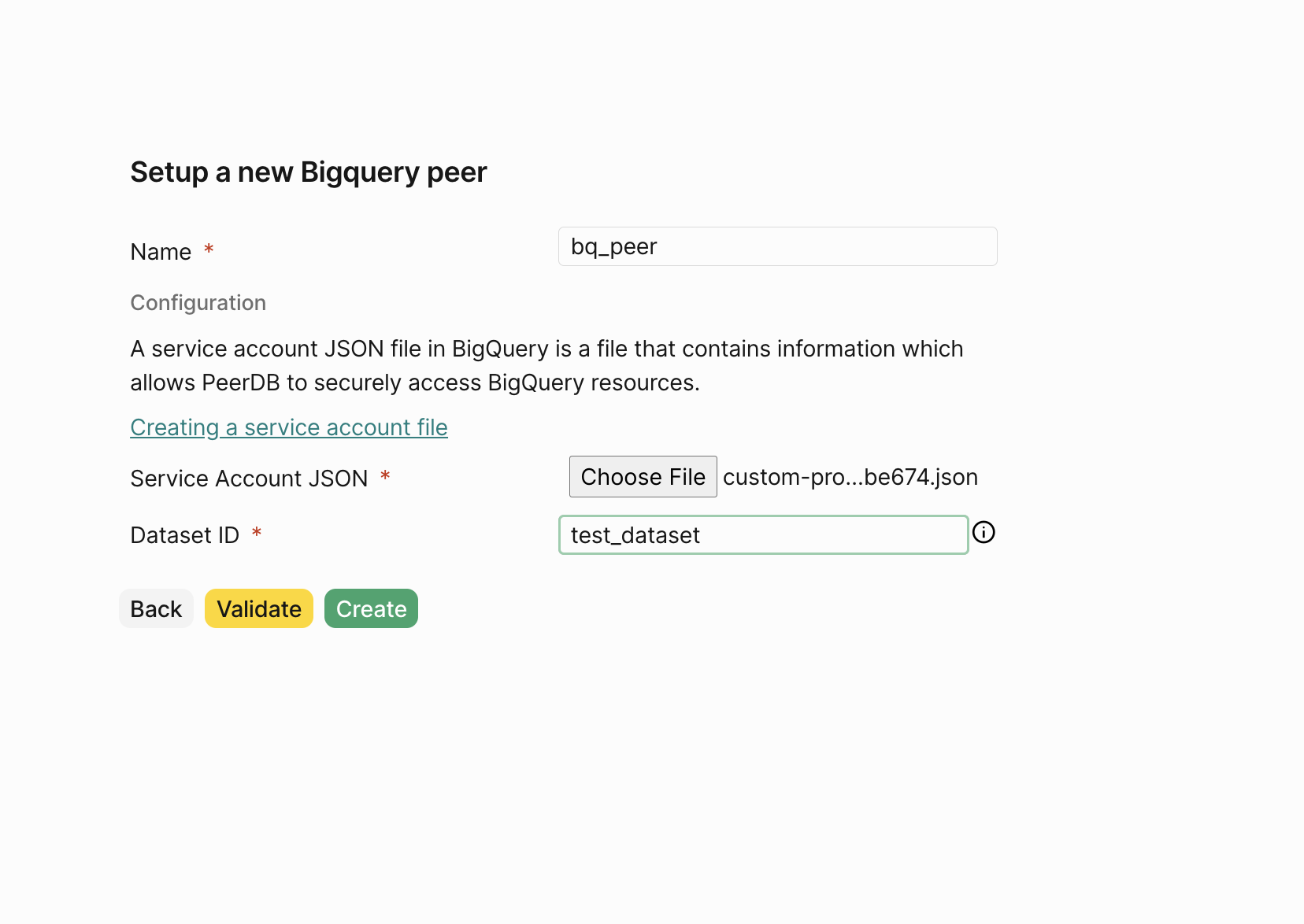
   <Frame caption="Create BigQuery Peer">
     <img src="https://mintcdn.com/peerdb/L54DxDXK99_p-wL9/images/setup/bq-create-peer.png?fit=max&auto=format&n=L54DxDXK99_p-wL9&q=85&s=5516983514b0641c2521cd258da7d4db" width="1656" height="1174" data-path="images/setup/bq-create-peer.png" />
   </Frame>